


 MediaOptimizer
|
Support Portal
MediaOptimizer
|
Support Portal
 Getting Started


 Technical Documentation


 Security & Compliance


 Support & Resources


Overview
MediaOptimizer is an automated pixel and campaign lifecycle management platform designed for marketers and agencies. It centralizes campaign and pixel data from major ad platforms such as Facebook, Google Ads, LinkedIn, and TikTok, automates pixel expiry tracking, monitors post-expiry conversions, and flags underperforming or anomalous pixels.
By eliminating manual data entry, enforcing campaign governance, and providing real-time alerts, MediaOptimizer ensures your campaigns remain accurate, compliant, and optimized without constant developer support.

1. What is MediaOptimizer?
MediaOptimizer acts as your single source of truth for all digital campaign and pixel data. It’s built to simplify the ongoing management, tracking, and health of your advertising pixels and campaigns across multiple platforms.
With MediaOptimizer, you can:
- Centralize and visualize campaign and pixel data across channels
- Automate pixel expiry and renewal alerts
- Track conversions and attribution even after expiry
- Detect and flag anomalies or underperforming pixels
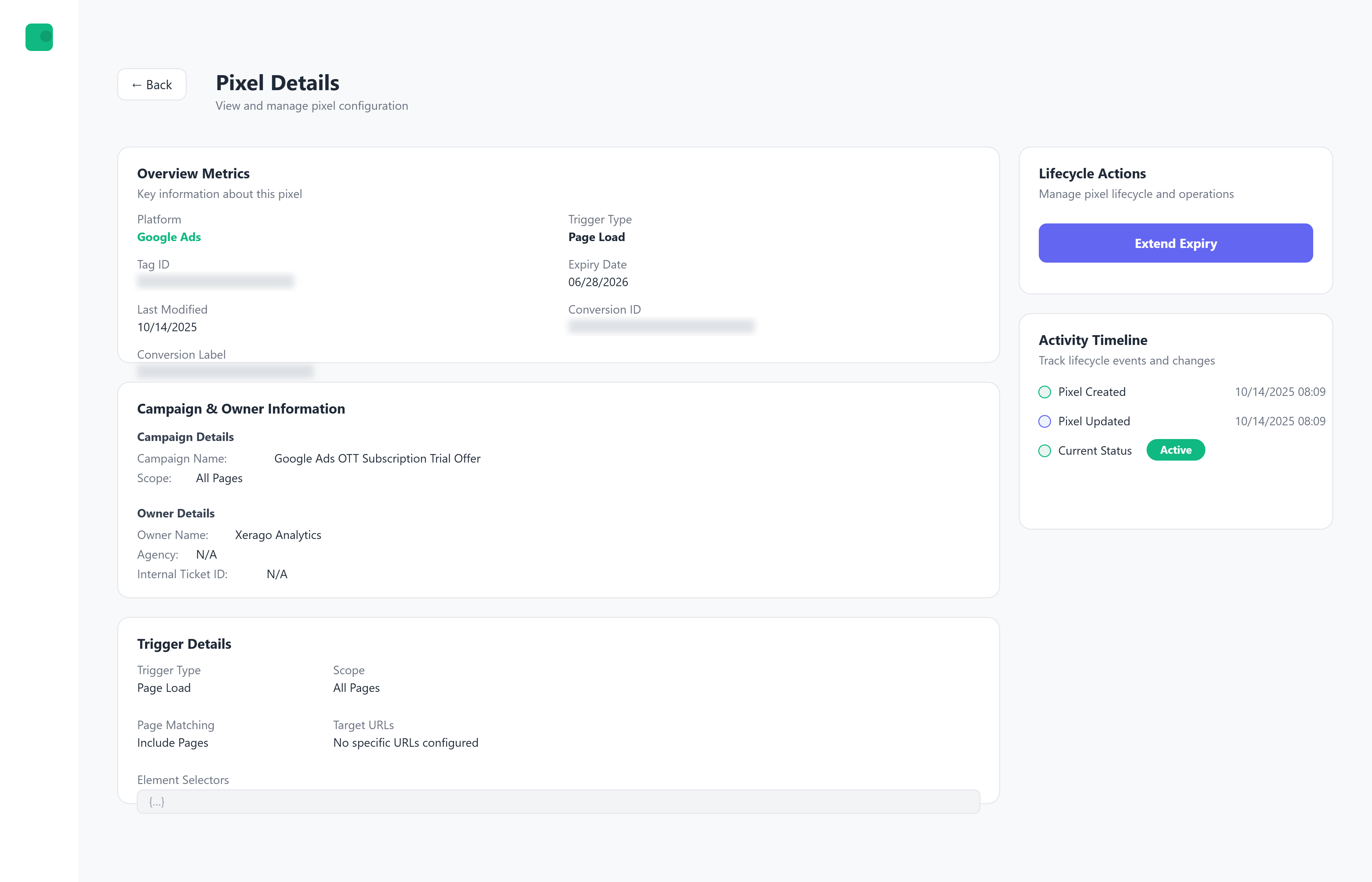
Pixel Trigger & Firing Logic
MediaOptimizer allows precise control over when and where tracking pixels fire to ensure data accuracy. Supported trigger types include:
- Page Load Triggers: Fire when a page loads.
- Interaction Triggers: Fire based on user actions such as button clicks or form submissions.
Trigger rules can be refined using:
- URL matching (equals, contains)
- Include or exclude page rules
- Query string conditions
- Selector-based targeting (CSS selector, element ID, data attributes)
This ensures pixels fire only in intended contexts and prevents misfiring across unrelated pages.
- Reduce human errors and dependency on technical teams
- Maintain governance and compliance across all ad accounts

Tip: MediaOptimizer helps eliminate data drift and reporting inconsistencies caused by missing or expired pixels.
2. End User Experience (What Users See)
a. Modes of Interaction
- Dashboard Mode: A comprehensive, real-time view of all campaigns, pixels, alerts, and performance summaries.
- Alert Center: Consolidated alerts highlighting expired, expiring, or underperforming pixels.
- Campaign Insights Panel: Drill-down views into campaign-level metrics and anomaly reports.
- Lifecycle Tracker: Visual timeline showing campaign setup, live duration, expiry, and post-expiry monitoring.
b. What MediaOptimizer Can Do for Users
- Automatically detect and notify when pixels are nearing expiry or showing low activity.
- Provide visual campaign health status with color-coded indicators.
- Track post-expiry conversions to identify missed opportunities.
- Centralize campaign metadata from different ad platforms into a unified view.
- Flag discrepancies or unusual conversion patterns for investigation.
- Offer one-click export of governance reports for audits and reviews.

Always renew or replace expiring pixels promptly to avoid losing conversion tracking accuracy.
3. Admin Interface (What Admins Control)
a. Admin Panel Overview
The Admin Panel is designed for marketers, media planners, and agency account managers to easily monitor and control campaign operations — no coding or developer setup needed.
Admins can:
- Onboard ad accounts and connect multiple platforms
- Set up governance rules for expiry alerts and performance thresholds
- Review campaign health dashboards
- Manage user roles and access levels
- Download audit-ready reports
b. Onboarding & Setup Steps
| Step | Function | Purpose |
|---|---|---|
| Step 1 | Connect Ad Accounts | Securely connect ad platforms such as Meta, Google Ads, LinkedIn, and TikTok. |
| Step 2 | Import Pixel & Campaign Data | Automatically fetch all active pixels and campaigns across connected accounts. |
| Step 3 | Configure Governance Rules | Define expiry alerts, anomaly thresholds, and reporting frequency. |
| Step 4 | Preview Campaign Health | Review dashboard indicators and identify any at-risk campaigns or expired pixels. |
| Step 5 | Activate Monitoring | Enable ongoing monitoring and automated alerting for real-time governance. |

Once onboarding is complete, MediaOptimizer continuously syncs campaign and pixel data without manual intervention.
c. Core Admin Features
| Feature | What You Can Control |
|---|---|
| Dashboard | Monitor campaign performance, pixel health, and expiry timelines. |
| Governance Rules | Define expiry windows, alert thresholds, and anomaly parameters. |
| Alert Center | View active alerts and prioritize critical issues. |
| Cross-Platform Sync | Refresh data across all linked ad accounts automatically. |
| Access Management | Assign roles such as Admin, Manager, or Viewer with appropriate permissions. |
| Audit Logs | Review all governance actions and status updates for transparency. |
| Reporting | Generate and export performance or compliance reports on demand. |
4. Use Cases
- Marketing Agencies: Manage multiple client campaigns across platforms with centralized control and expiry automation.
- In-House Marketing Teams: Ensure compliance and accuracy in ongoing campaigns without relying on developers.
- Performance Marketers: Identify low-performing or anomalous pixels and optimize campaign tracking in real time.
- Compliance Teams: Maintain data governance and audit readiness for ad tracking activities.
- Enterprise Marketing Ops: Automate governance workflows and enforce best practices at scale.
5. KPIs Influenced by MediaOptimizer
MediaOptimizer directly improves campaign performance and operational efficiency. Key measurable impacts include:
- ↑ Data Accuracy: Automated pixel lifecycle tracking eliminates manual errors.
- ↑ Governance Compliance: Centralized monitoring ensures adherence to campaign and data policies.
- ↓ Missed Conversions: Continuous post-expiry tracking captures late conversion data.
- ↓ Manual Oversight:Reduces dependency on developers or manual spreadsheets.
- ↑ Campaign ROI: Ensures pixels and tracking are active for the full campaign duration.
- ↓ Operational Friction: Unified visibility simplifies collaboration between marketing and analytics teams.
Performance Insight: Clients report a measurable drop in expired pixels and a significant improvement in campaign continuity after adopting MediaOptimizer.
Deployment Versatility
MediaOptimizer is built for flexibility and scalability. It supports single-brand, multi-brand, and multi-client environments — ideal for both agencies and enterprise marketing teams. It integrates seamlessly with major ad ecosystems and operates securely in the cloud for reliable uptime and accessibility.
Integration Capabilities
- Works with Facebook, Google Ads, LinkedIn, TikTok, and other major ad platforms
- Supports integration via secure APIs or account connectors
- Compatible with multi-account and multi-brand setups
- Provides data exports and audit logs for compliance and analytics tools
- Easily accessible via web portal with role-based permissions
End Result:
With MediaOptimizer, marketers gain a powerful yet easy-to-use command center that simplifies campaign oversight, enforces governance standards, and ensures every pixel delivers maximum value without constant back-and-forth with developers.
Pixel Creation Workflow (How Pixels Are Created)
MediaOptimizer enables controlled creation of tracking pixels through a guided, multi-step workflow. This ensures consistency, governance, and accurate deployment across advertising platforms.
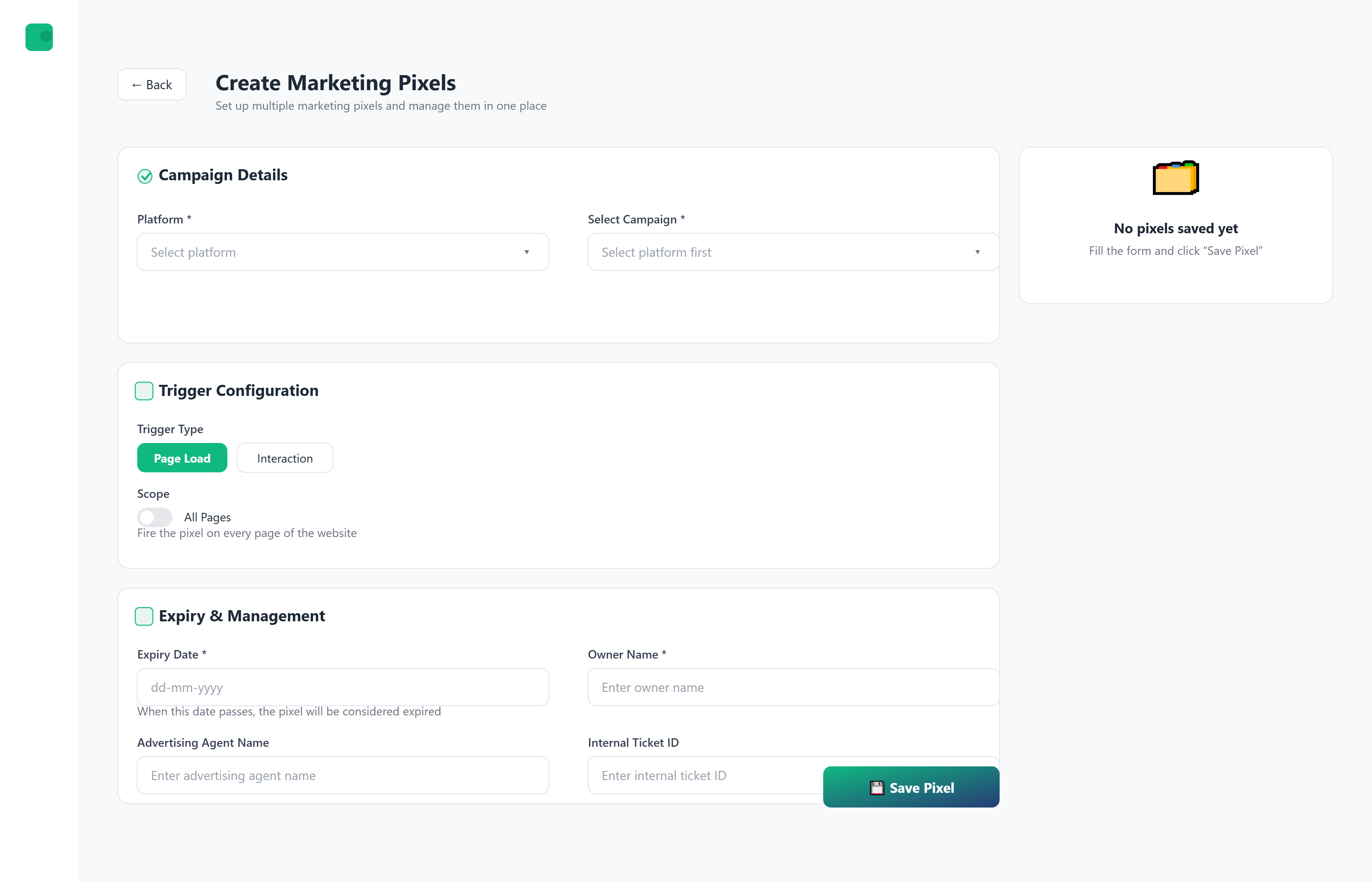
Pixel creation follows a structured 5-step wizard:
Step 1: Campaign & Platform Configuration
Define campaign name and select the advertising platform (Meta, Google Ads, LinkedIn, TikTok). Platform-specific identifiers such as Pixel ID, Conversion ID, Event Name, or Conversion Label are captured at this stage.
Step 2: Trigger Configuration
Specify when the pixel should fire:
- Page Load or User Interaction
- URL targeting rules (include / exclude pages)
- Interaction selectors (element ID, CSS class, data attributes)
Step 3: Expiry & Ownership Details
Define campaign start and expiry dates, ownership details, agency information, and governance metadata. Optional reminder windows and auto-archive rules can be configured.
Step 4: Review & Validation
All inputs are validated before submission. Users can edit any step before proceeding.
Step 5: Submission & Confirmation
Once submitted, the pixel enters the approval workflow or is auto-approved based on user role.
Drafts can be saved at any step and resumed later.
Overview
This section is designed to help marketers, agencies, and administrators quickly onboard to MediaOptimizer and start managing campaign and pixel lifecycles efficiently.
It covers:
- How to access the MediaOptimizer Admin Console
- Prerequisites before setup
- Step-by-step onboarding workflow
- Core post-onboarding configurations and user roles
MediaOptimizer automates pixel and campaign lifecycle management across advertising platforms such as Facebook, Google Ads, LinkedIn, and TikTok, ensuring all campaigns remain active, compliant, and optimized without constant manual checks or developer involvement.
Prerequisites
System Requirements
- Modern web browser: Chrome, Firefox, or Edge
- Stable internet connection
- Enabled cookies and JavaScript
Access Credentials
- Enterprise or agency login credentials
- Appropriate user role access (Admin, Marketer, or Agency)
Ensure you have Admin privileges within MediaOptimizer and authorized access to your organization’s connected ad accounts before setup.
Step-by-Step Instructions
1. Logging into MediaOptimizer
- Visit the MediaOptimizer Admin Console URL (shared during deployment).
- Log in using your enterprise or agency credentials.
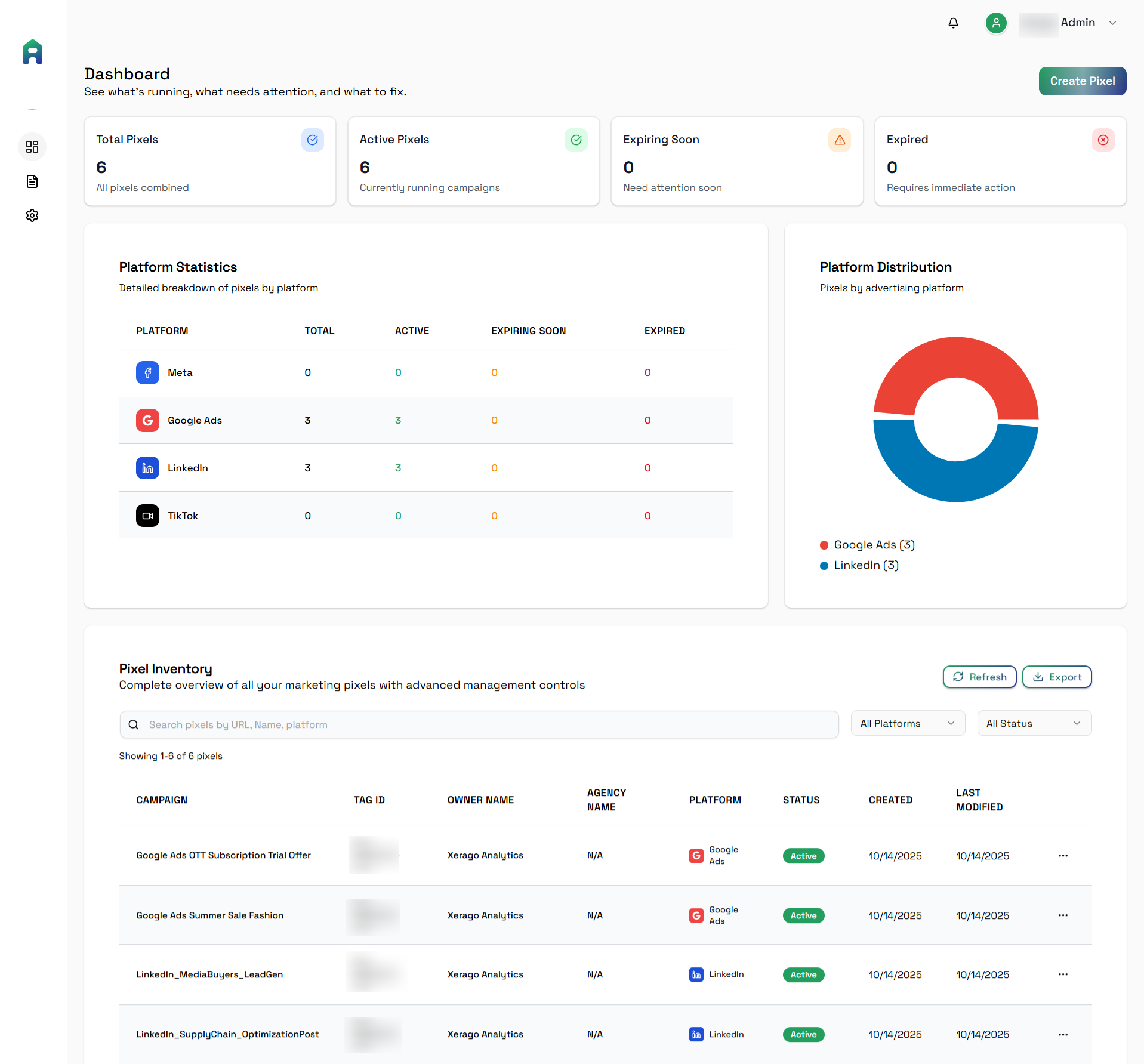
- After login, you’ll land on the Dashboard, which shows:
- Overview of connected ad accounts
- Campaign and pixel health summaries
- Alerts and recent activities
- Quick links to onboarding and configuration modules
2. Navigating the Interface
Main Sidebar Modules
| Module | Description |
|---|---|
| Dashboard | Displays high-level insights on campaigns, pixel health, active alerts, and governance compliance. |
| Ad Account Connections | Connect and manage advertising accounts from Meta, Google, LinkedIn, TikTok, etc. |
| Pixel & Campaign Inventory | View and manage all campaigns and pixels in one place with health and expiry indicators. |
| Governance Rules | Configure expiry alerts, anomaly thresholds, and auto-flagging policies. |
| Request Center | Review and approve incoming pixel or campaign setup requests from agencies. |
| Alerts & Notifications | Central hub for viewing expiry alerts, anomalies, and underperformance signals. |
| Reports & Exports | Generate performance, governance, and audit reports for internal or client reviews. |
| Team Access | Manage user roles and permissions for Admin, Marketer, and Agency roles. |
| Audit Logs | Track activity history — approvals, rule changes, pixel updates, and report generation. |
| Configuration | Manage workspace-wide preferences including alert frequency, refresh schedules, and governance rules. |
Section 1: Onboarding Workflow
The onboarding process includes five key steps to fully activate MediaOptimizer for your organization or agency.
Approval Workflow & Role-Based Creation
MediaOptimizer enforces governance through role-based approval workflows.
Admin / Marketer Users
- Can create pixels directly
- Pixels are auto-approved upon submission
- Approved pixels proceed immediately to deployment (if enabled)
Agency Users
- Submit pixel requests for approval
- Requests enter a Pending state
- Admins or Marketers can review, edit, approve, or reject requests
- Agencies are notified of approval or rejection outcomes
All approval actions are recorded in audit logs for traceability.
Step 1: Connect Ad Accounts
Purpose:
Integrate MediaOptimizer with your advertising platforms so it can automatically import and monitor campaign and pixel data.
Supported Platforms:
- Meta (Facebook/Instagram)
- Google Ads
- LinkedIn Ads
- TikTok Ads
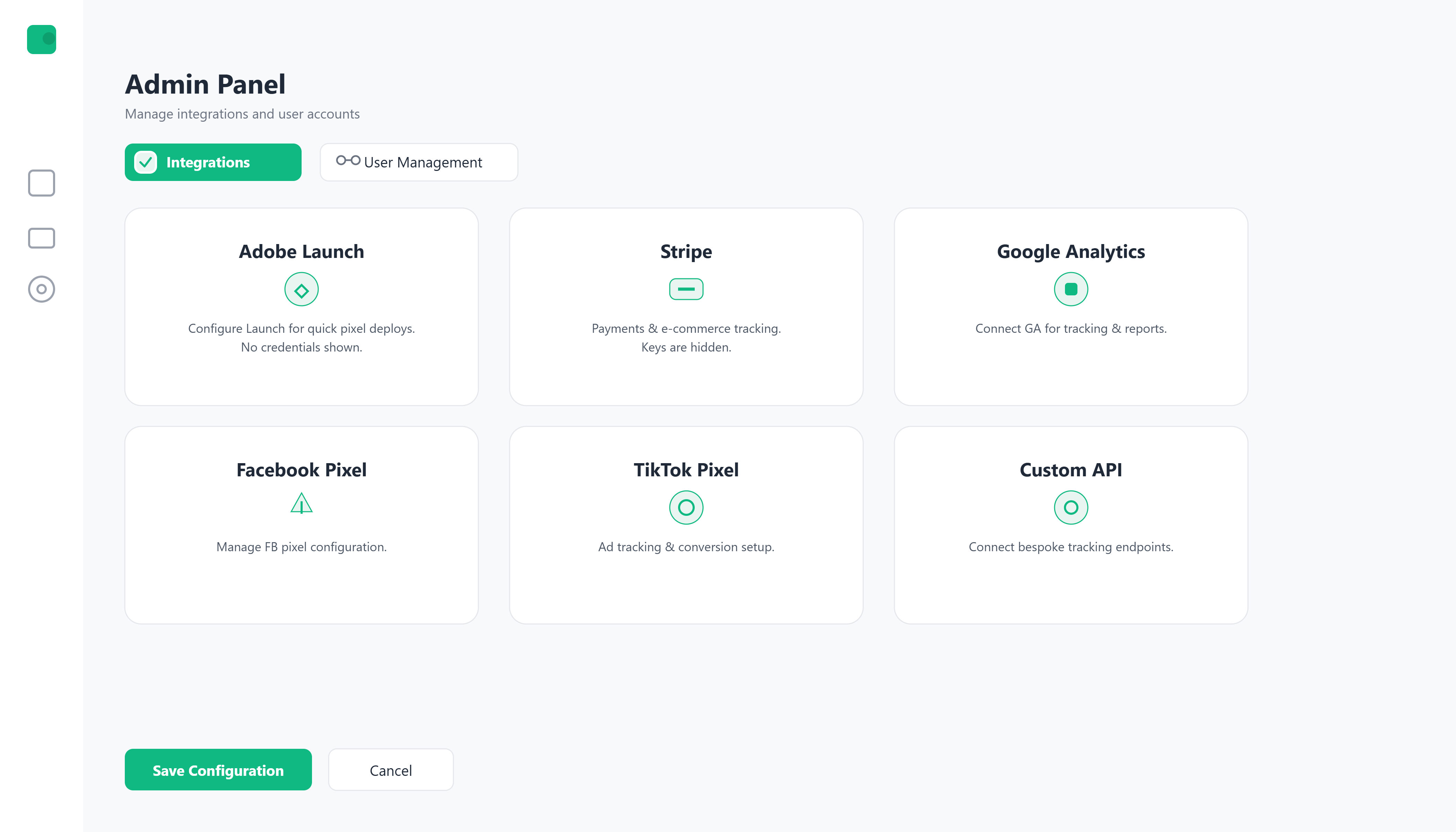
Path: Onboarding > Ad Account Connections
You can connect multiple client accounts under one workspace. Each account’s data will sync automatically and appear in the Pixel & Campaign Inventory.
Step 2: Import Campaign and Pixel Data
Purpose:
Pull all campaign, ad set, and pixel data into MediaOptimizer for unified visibility.
What Happens:
- Campaigns and tracking pixels are automatically fetched.
- Expiry timelines are detected.
- Inactive or duplicate pixels are flagged.
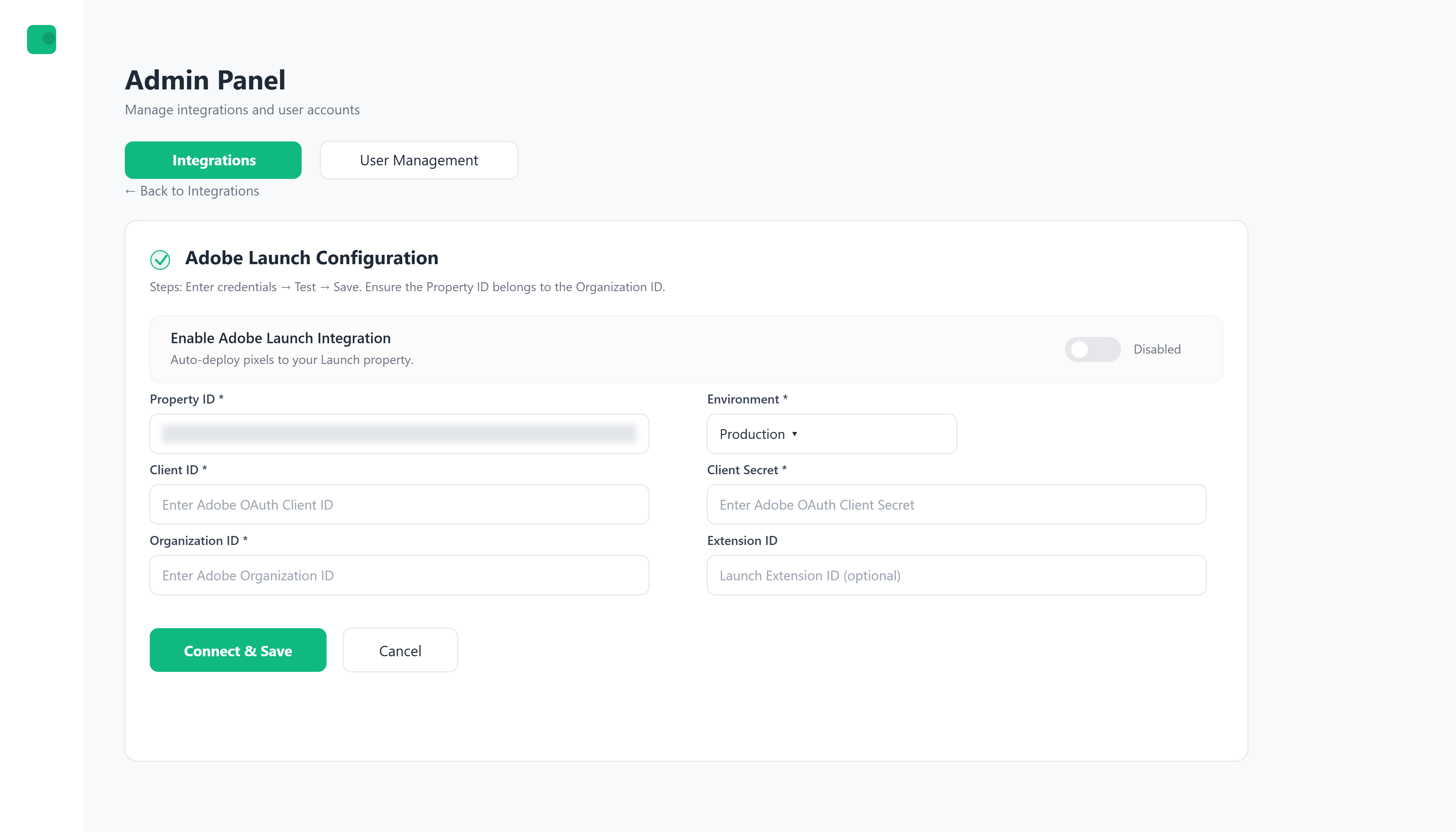
Path: Onboarding > Data Sync
Verify that each imported ad account shows the correct campaigns and active pixels before proceeding. Misaligned access tokens can skip data imports.
Step 3: Configure Governance Rules
Purpose:
Establish your organization’s governance framework to ensure proactive monitoring and compliance.
You Can Set:
- Pixel Expiry Rules: Define alert windows before a pixel expires.
- Anomaly Detection: Set deviation thresholds for conversion or click drops.
- Campaign Standards: Define minimum performance benchmarks or lifespan policies.
A best practice is to set pixel expiry alerts 15–30 days before actual expiry to allow corrective action without downtime.
Step 4: Review Campaign Health
Purpose:
Validate imported data and ensure the governance setup reflects your live campaign structure accurately.
You’ll See:
- Active, expiring, and expired pixels
- Campaign performance summaries
- Alerts for anomalies or missing pixels
Step 5: Activate Monitoring and Alerts
Purpose:
Enable automated monitoring, governance rules, and real-time alerting.
Once activated:
- MediaOptimizer continuously scans campaigns and pixels.
- Expiry, anomaly, and underperformance alerts are triggered automatically.
- Reports and dashboards refresh in real-time.
Once live, the system requires no manual refresh. You’ll receive notifications via dashboard and email whenever a critical alert is detected.
Draft Pixel Management
Users can save incomplete pixel configurations as drafts during creation.
Draft capabilities include:
- Save at any step of pixel creation
- Resume editing later without data loss
- View all drafts in a dedicated drafts list
This is especially useful for agency workflows and complex campaign setups.
Section 2: Post-Onboarding Configuration
After onboarding, a few configurations help tailor MediaOptimizer for your operational needs.
Dashboard Personalization
Choose from multiple dashboard layouts for clearer visibility:
- Summary View: Compact, KPI-focused display for quick insights.
- Lifecycle View: Visual timelines for campaign and pixel statuses.
- Client View: Dedicated dashboards for multi-client or multi-brand environments.
Tip: Use filters to isolate high-priority clients or campaigns nearing expiry.
Alerts & Notifications
Manage how and when alerts are received.
- Set alert frequency (immediate, daily, weekly).
- Route alerts to specific users or teams.
- Enable or disable post-expiry conversion tracking notifications.
Reports and Exports
Generate detailed, shareable insights for governance and performance audits:
- Expiry and anomaly reports
- Campaign and pixel health audits
- Governance compliance summaries
Available formats: PDF, Excel, or CSV
Team Access
Define roles and permissions to control who can view, edit, and approve within the platform.
| Role | Capabilities |
|---|---|
| Admin | Full control of the workspace. Connect ad accounts, manage governance rules, approve/reject/withdraw agency requests, assign roles, and access all reports and logs. |
| Marketer | Create and manage campaigns, review inventory, approve or reject agency requests, manage expiry settings, and respond to alerts. |
| Agency | Submit pixel and campaign requests for client approval, monitor request status, and view related alerts for their accounts. Cannot modify governance rules or configurations. |
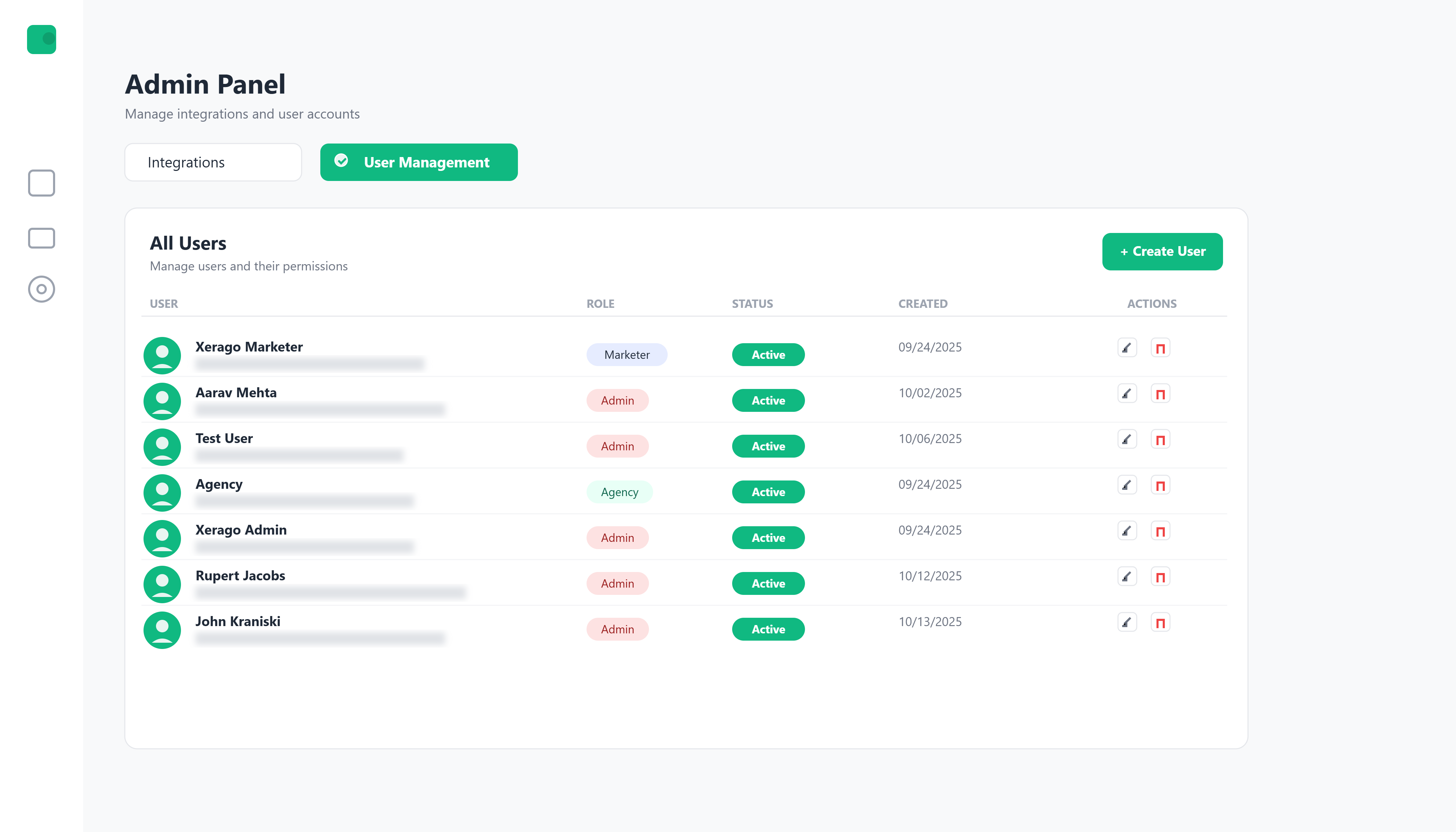
Admin access should be limited to core organization owners or leads. Incorrect configurations can affect tracking accuracy across accounts.
Assign Agency-level access for external partners to let them submit pixel or campaign setups without altering governance policies.
Path: Admin Console > Team Access
Use Cases Enabled
| Use Case | Description |
|---|---|
| Pixel Lifecycle Management | Automates tracking, expiry monitoring, and renewal of pixels across all ad platforms. |
| Governance Enforcement | Applies standardized expiry and anomaly rules to maintain compliance across campaigns. |
| Multi-Account Oversight | Centralizes monitoring across multiple ad accounts or client workspaces. |
| Post-Expiry Conversion Tracking | Tracks conversions even after pixel expiry to maintain accurate attribution. |
| Agency Collaboration | Enables agencies to submit and track campaign changes for client approval. |
| Anomaly Detection & Alerting | Flags unusual performance drops or pixel mismatches automatically. |
| Audit & Compliance Reporting | Generates transparent governance reports for audits or client validation. |
MediaOptimizer is designed to simplify marketing governance not just as a monitoring tool, but as a complete control center for campaign accuracy, performance, and compliance across all platforms.
JourneyAssist integrates enterprise-grade data governance practices to ensure that data is collected, stored, and processed with integrity, traceability, and accountability. Governance is enforced across the entire data lifecycle—from ingestion to export—with controls for classification, access, auditing, and sharing.
Data Classification Guidelines
JourneyAssist applies consistent classification rules to label data based on sensitivity, usage permissions, and retention policies.
Classification Tiers
| Tier | Description |
|---|---|
| Public | Non-sensitive data (e.g., anonymized usage statistics) |
| Internal | Operational metadata not exposed to end users |
| Confidential | User session data, identity fields, model-generated responses |
| Restricted | Personally Identifiable Information (PII), consent logs, regulatory-sensitive records |
Labeling Mechanism
Each field in JourneyAssist’s event schema and storage is tagged with a classification label that determines:
- Encryption & masking behavior
- Visibility in reports
- Export and API access restrictions
Data Handling by Classification
- PII fields are encrypted in transit and at rest using AES-256 and TLS 1.2+
- Restricted data is access-controlled and excluded from non-admin exports
- Internal metadata is visible only to whitelisted support or compliance users

These rules ensure sensitive data is never mishandled, even during debugging or analytics activities.
Access Auditing & Logging
To ensure transparency and compliance, all data access—by users or systems—is logged with contextual metadata.
Logged Activities
- User logins, role changes, flow executions
- Session data access, record updates
- Each log includes: IP, timestamp, role, and action type
Audit Reports & Alerts
- Reports filterable by classification level, user role, or record ID
- Suspicious activity (e.g., mass exports, rapid deletions) triggers real-time alerts
- Supports audit trails for compliance with GDPR and SOC 2
Third-Party & API Access Controls
JourneyAssist enforces strict access boundaries for external systems:
- Tokenized API keys with scoped permissions and rate limits
- Sandboxed integrations reviewed periodically
- Access expiration and activity-based revocation policies
Data Sharing Controls
Export Restrictions
- Exports can be filtered by classification or specific tags
- Export operations may require multi-factor authentication (MFA)
- Admins can enable approval workflows for sensitive data extractions
Partner Data Filters
When integrating with third-party systems (e.g., CRMs, support tools):
- Only pre-approved fields are shared
- Restricted or PII fields are masked or excluded
Anonymization Options
Analytics exports can be auto-tokenized to remove or scramble personal identifiers without losing trend insights.
Governance at Scale
JourneyAssist’s data governance architecture is designed to:
- Scale with your enterprise deployment
- Meet global compliance standards (GDPR, etc.)
- Provide clear auditability and fine-grained access control
- Keep stakeholders accountable with traceable, transparent data flows
Overview
This section is designed to help new users, administrators, and implementation teams onboard and begin using JourneyAssist efficiently. It includes:
- How to access the JourneyAssist Admin Console
- Prerequisites for initial setup
- A walkthrough of key configurations and platform usage patterns
JourneyAssist blends guided flows, AI-driven assistance, and campaign orchestration to deliver real-time value across digital journeys.
It offers a comprehensive entry point tailored for multiple roles, ensuring:
- Foundational setup is streamlined
- Users are quickly familiarized with key modules
- The platform is scalable across industries and user volumes
Prerequisites
System Requirements
- A modern web browser: Chrome, Firefox, or Edge
- Stable internet connection with JavaScript enabled
Access Credentials
- Enterprise login via SSO or OIDC
- Admin privileges for full configuration access

Important: Ensure you have admin privileges and enterprise credentials before starting the setup process.
Step-by-Step Instructions
1. Logging into JourneyAssist
- Navigate to the Admin Console URL (provided during deployment)
- Authenticate using enterprise credentials (SSO/OIDC supported)
- Post-login, you’ll land on the Dashboard, displaying:
- Usage metrics
- Quick access modules
- System health indicators
2. Navigating the Interface
Main Sidebar Modules
| Module | Description |
|---|---|
| Dashboard | Displays KPIs, usage analytics, LLM consumption, and operational insights across JourneyAssist modules. |
| Onboarding Sites | Allows users to add new websites, verify domains, and configure initial setup for JourneyAssist deployment. |
| Interaction Mode (UI) | Enables selection of deployment type – Floater, Chatbot, or Embedded widget – as per platform needs. |
| LLM Connection | Connects with Public LLMs via APIs (e.g., OpenAI), Self-hosted / Private LLMs, or Custom Proprietary LLMs (BYOL). |
| Look & Feel | Enables customization of widget/chatbot appearance – brand color, logo, text color, border radius, and advanced CSS overrides. |
| Content Intelligence Center | Central module to configure prompts, map user intents to backend actions, and enrich responses with contextual data. |
| Discovery (Intent Recognition) | Detects and classifies user intents from queries using NLP and maps them to the correct backend workflows or knowledge sources. |
| Audit Logs | Tracks user and admin activities across the platform, including query handling, API errors, and configuration updates. |
| Reports | Provides usage metrics, LLM response stats, success/failure rates, and exportable data for internal analysis. |
| Team Access | Manages users, roles, and access levels for admins, editors, and viewers, with fine-grained permission control. |
| Configuration |
|
| Integrations |
|
Section 1: Onboarding Workflow
The onboarding process involves four key steps to enable JourneyAssist on your website.
Step 1: Connect Content API
Purpose: Enable JourneyAssist to access and learn from your existing website content via your CMS or structured content APIs.
- Supported formats: REST, GraphQL, Headless CMS APIs
- Typical content types: Product pages, FAQs, terms & conditions, help docs
- Frequency: Supports scheduled or real-time sync
- Output: Structured, searchable content in JourneyAssist's Indexing Engine
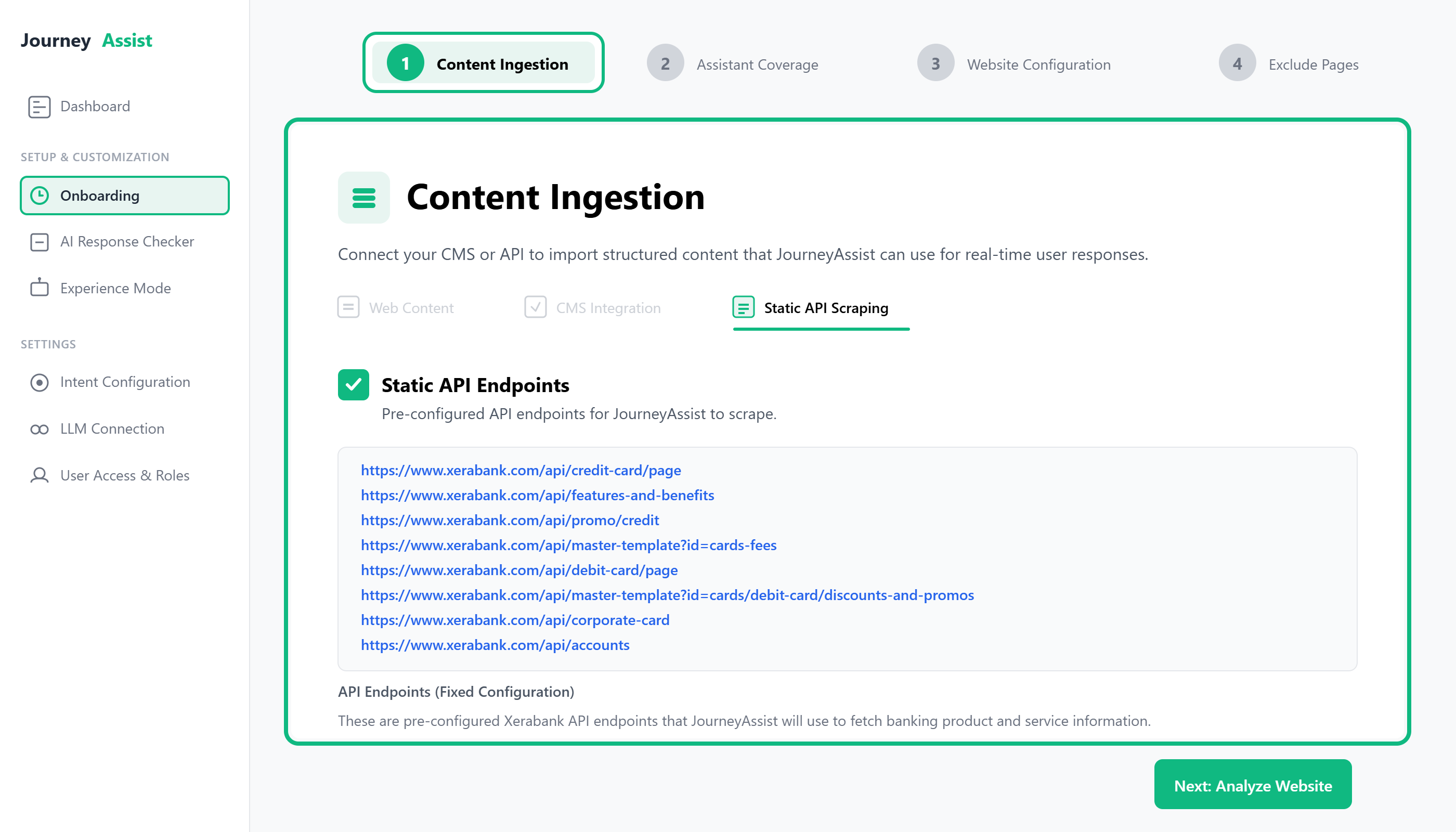
Path: Onboarding > Content Ingestion > API Connector
Note: Scraping is optional and used only in non-API environments.
Step 2: Define Assistant Coverage
Purpose: Classify the ingested content into segments relevant to user journeys and JourneyAssist's response model.
Common segments include:
- Product Information
- Pricing & Eligibility
- Application Workflows
- Support & FAQs
- Legal Disclosures
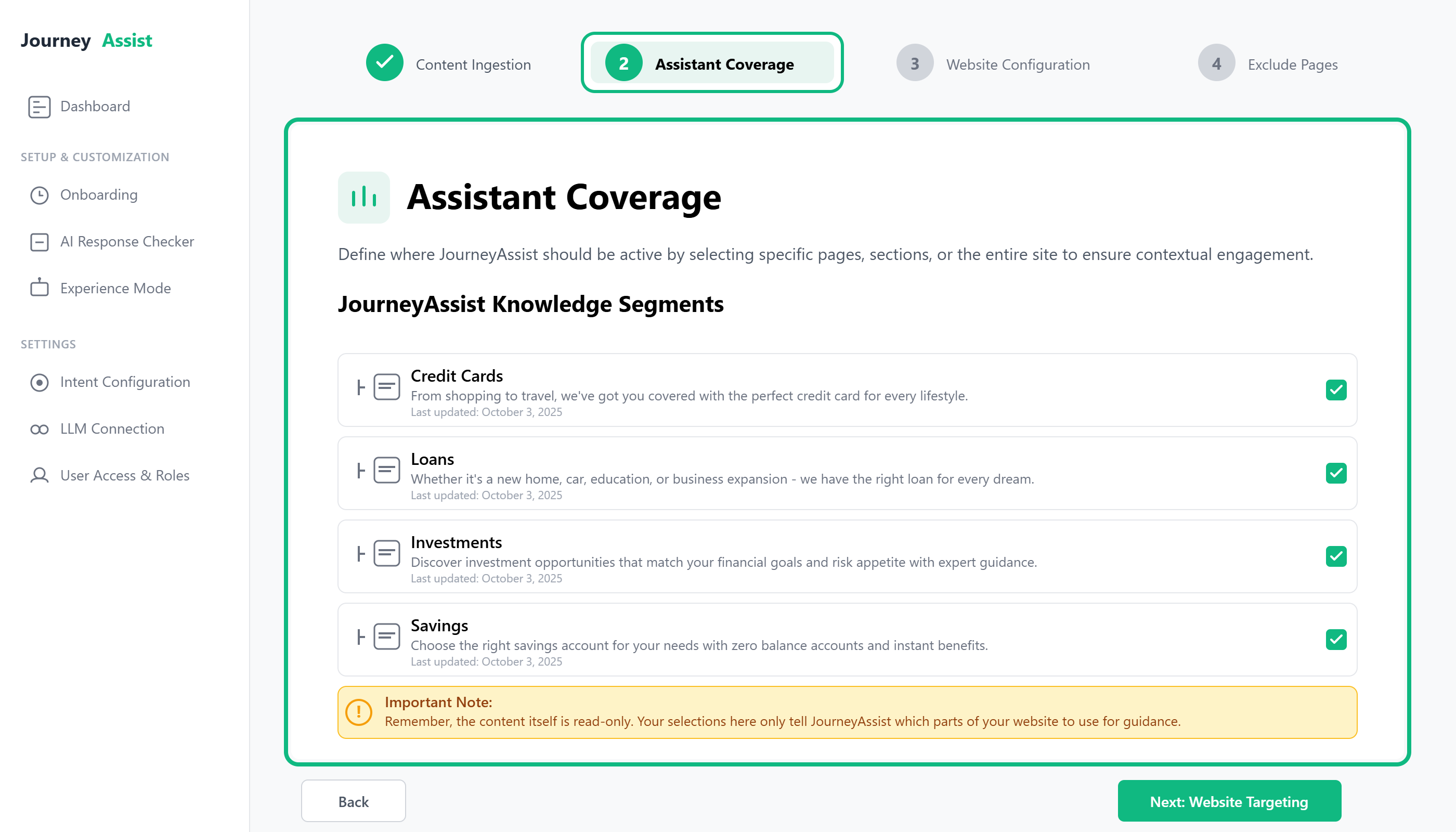
Path: Onboarding > Assistant Coverage
Step 3: Configure Website Targeting
Purpose: Define where, when, and how JourneyAssist should activate across your website.
Target by:
- URL rules (e.g., contains /apply, equals /home)
- Page types (home, product, checkout, support)
- User behavior (scroll %, time on page, inactivity, exit intent)
Customize:
- Widget position (bottom left or right)
- Activation triggers (automatic, on-click, time delay)
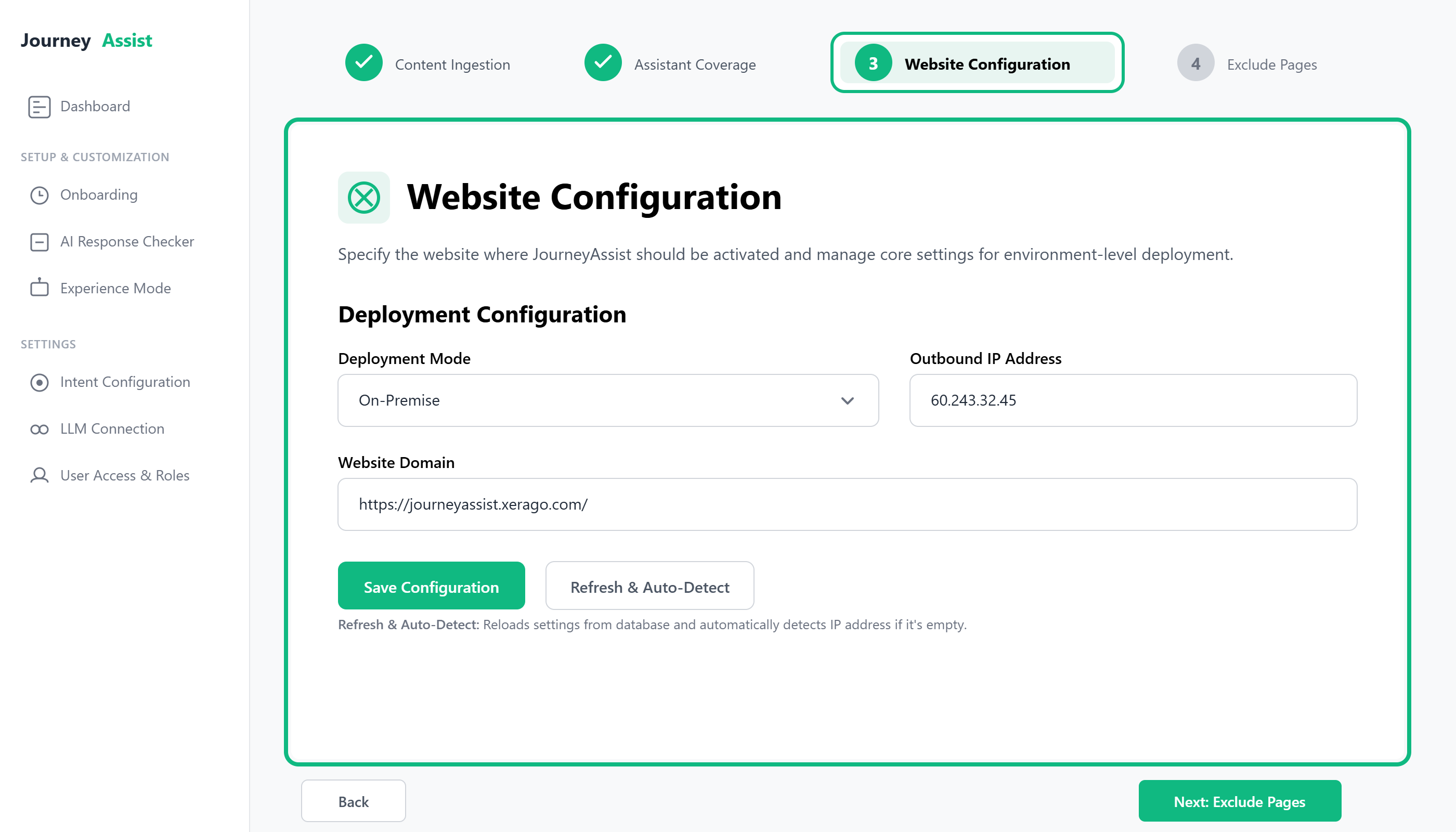
Path: Onboarding > Website Configuration
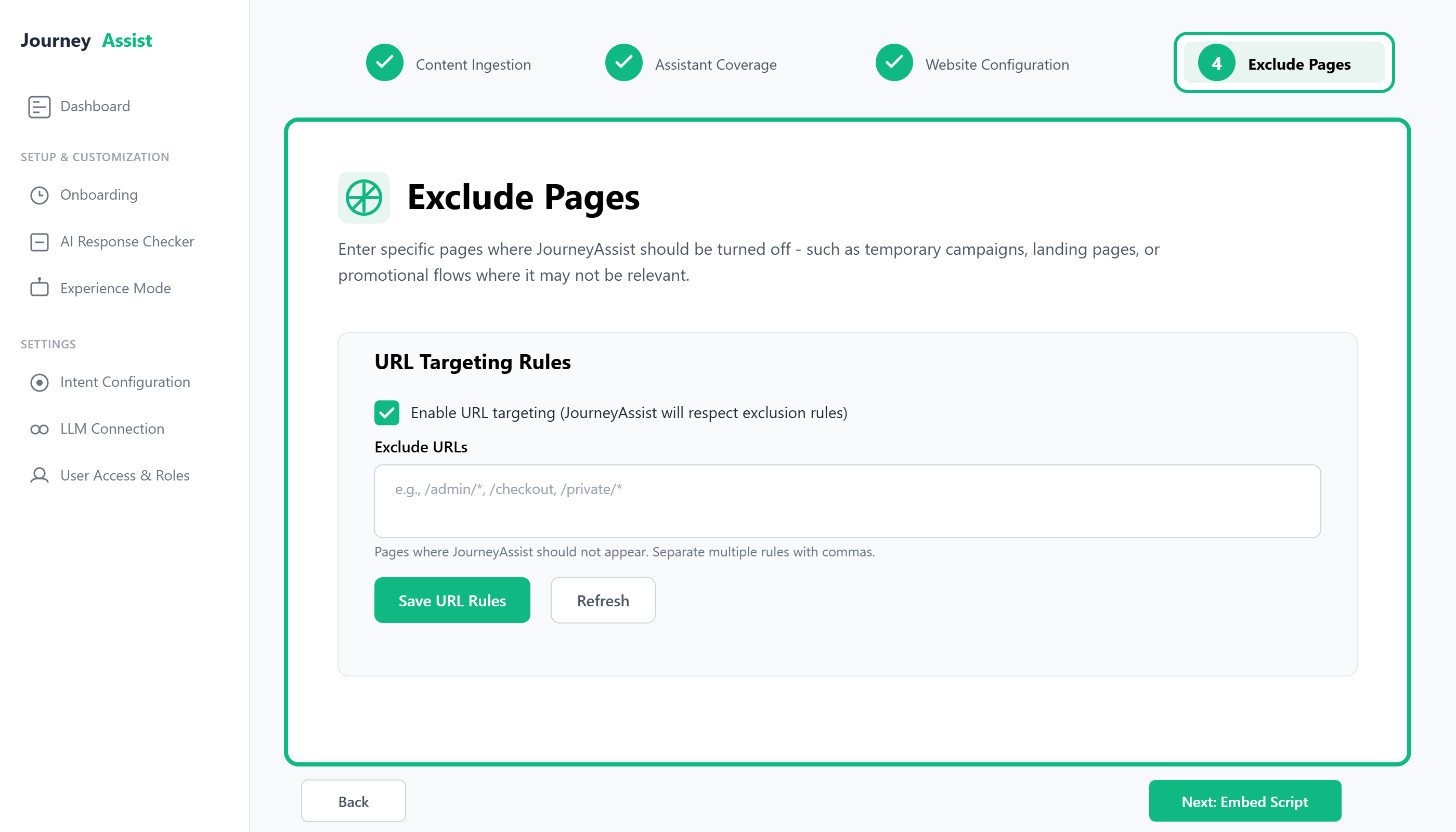
Step 4: Exclude Pages
Purpose: Enter specific pages where JourneyAssist should be turned off - such as temporary campaigns, landing pages, or promotional flows where it may not be relevant.
Step 5: Embed JourneyAssist Script
Purpose: Deploy JourneyAssist on your live website by embedding a lightweight JavaScript snippet.
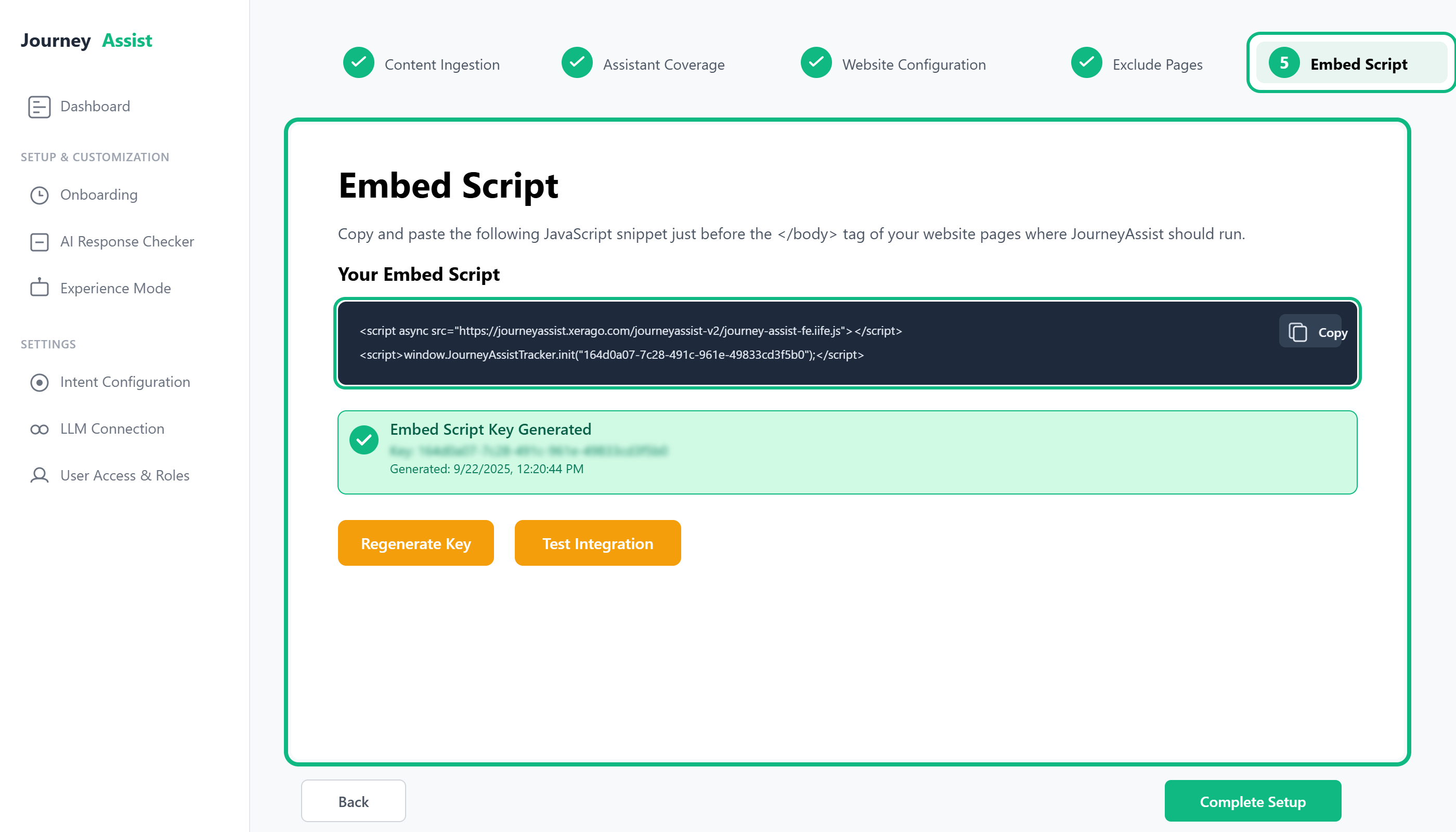
After completing targeting and content setup, you will receive a script like:
<script src="https://cdn.journeyassist.ai/init.js" data-token="your-site-token"></script>
Paste the script into your site’s <head> section or deploy via a tag manager (e.g., GTM, Tealium).
Path: Onboarding > Installation > Generate Embed Script
Section 2: Post-Onboarding Configuration
Once onboarding is complete, configure the following elements to fully enable JourneyAssist functionality.
UI Mode Setup
Choose your preferred assistant interface:
- Chatbot Mode – Full conversational experience
- Floater Mode – Lightweight contextual prompts
- Voice Mode (optional) – Enables voice interaction on supported devices

Customize branding, icons, positioning, and interaction rules via the Admin Console.
LLM Integration
JourneyAssist supports a range of large language model (LLM) connections:
- Public Cloud LLMs – Connect via API to providers like OpenAI, Claude, Perplexity
- Self-Hosted / Private LLMs – Deploy models such as Mistral, Qwen, LLaMA2 within your infrastructure
- Custom LLMs – Plug in proprietary, fine-tuned models via the LLM Router
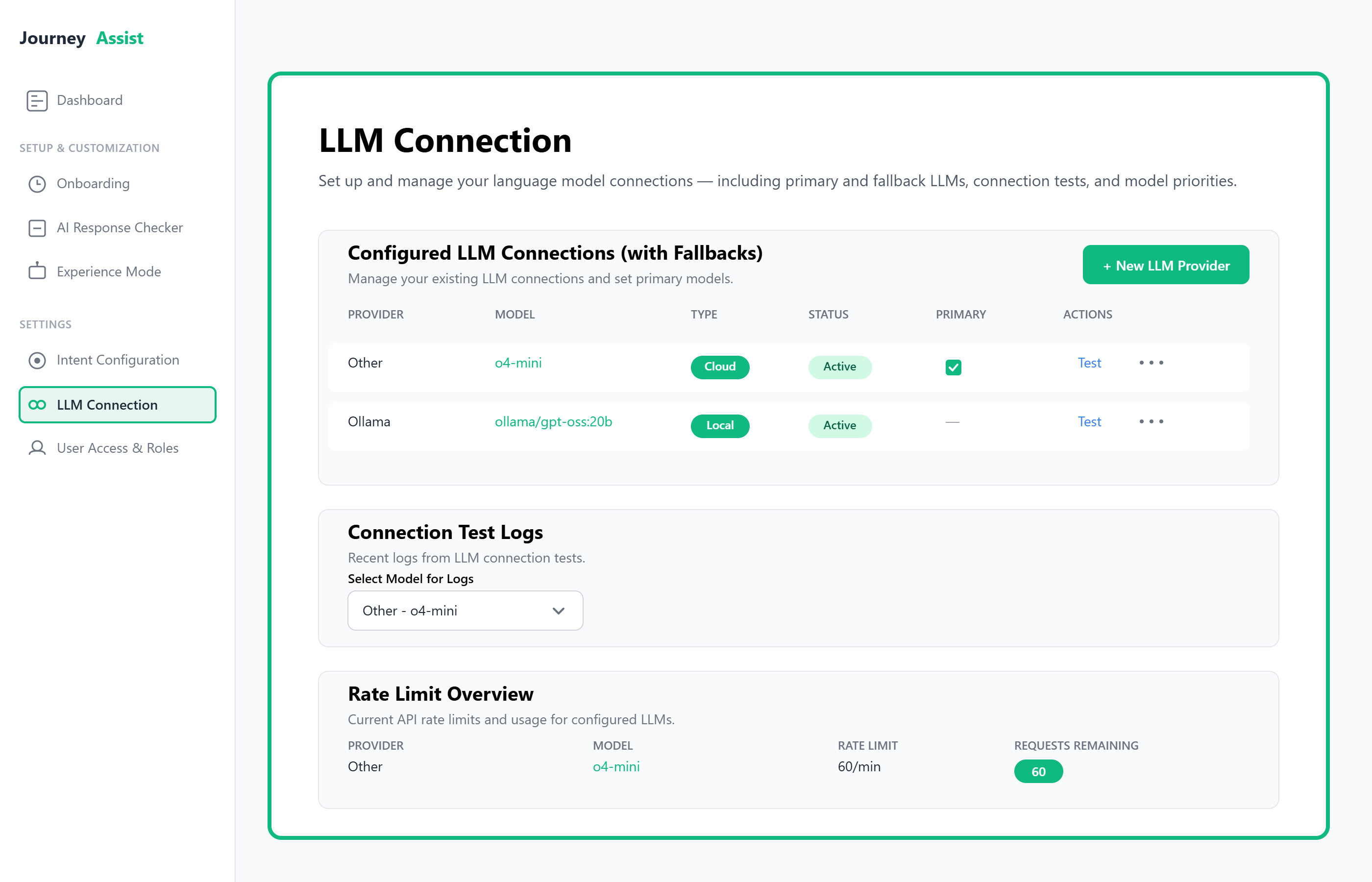
Path: LLM Router > Add Connection
Content Intelligence Center
Manage all ingested content:
- Validate segments
- Configure update schedules
- Apply content filtering rules
Accessible via: Content Intelligence > Manage Content
Team Access
Define user roles and permissions:
| Role | Capabilities |
|---|---|
| Admin | Full control over configuration and connections |
| Editor | Manage content, UI, and campaigns |
| Viewer | View analytics and reports only |
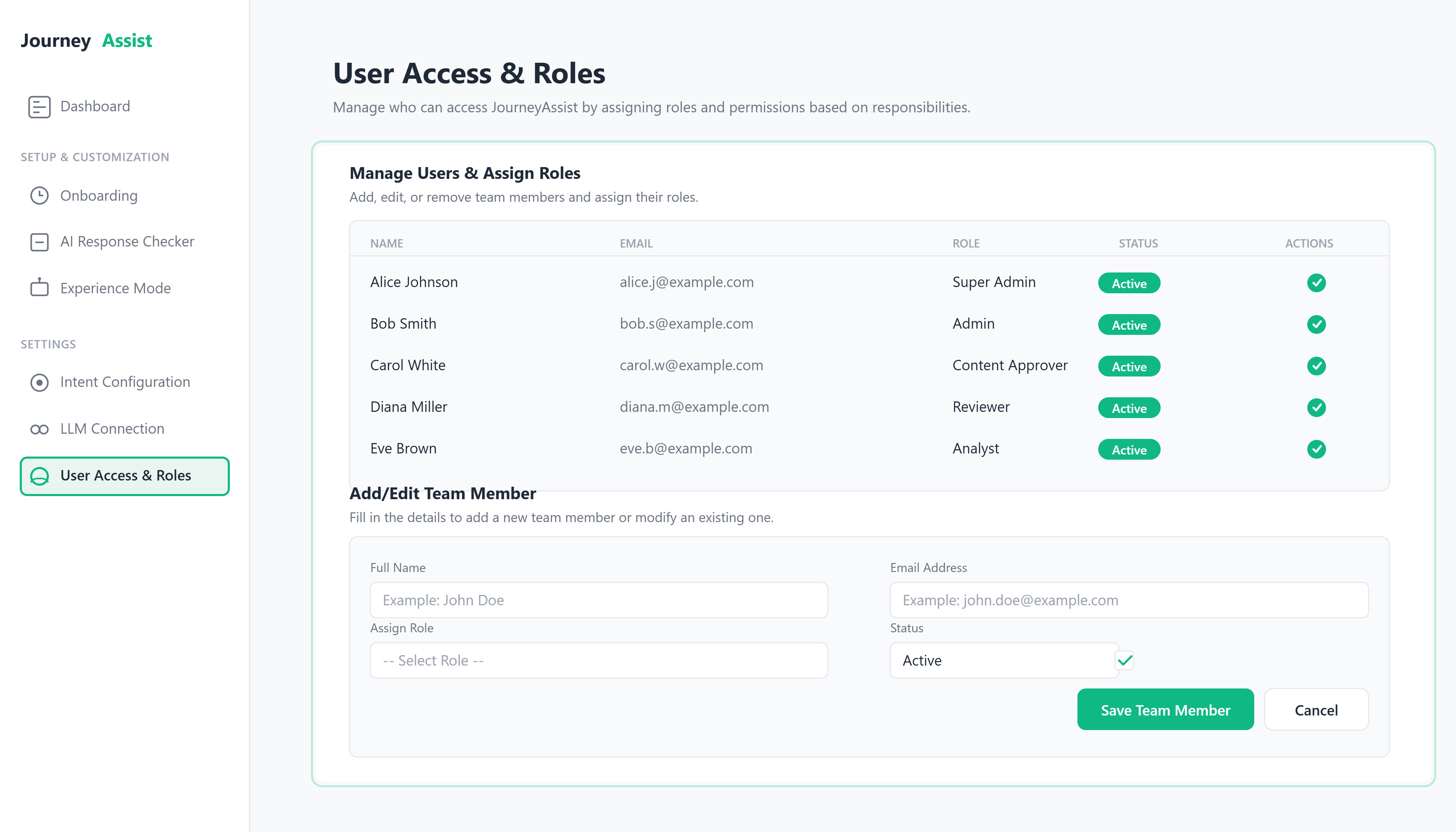
Path: Admin Console > Team Access
Real-Time Intent Recognition
Enable JourneyAssist to interpret user behavior and respond intelligently:
- Configure session tracking
- Map behavioral signals to defined intents
- Define actions: FAQs, smart nudges, escalation, product recommendations
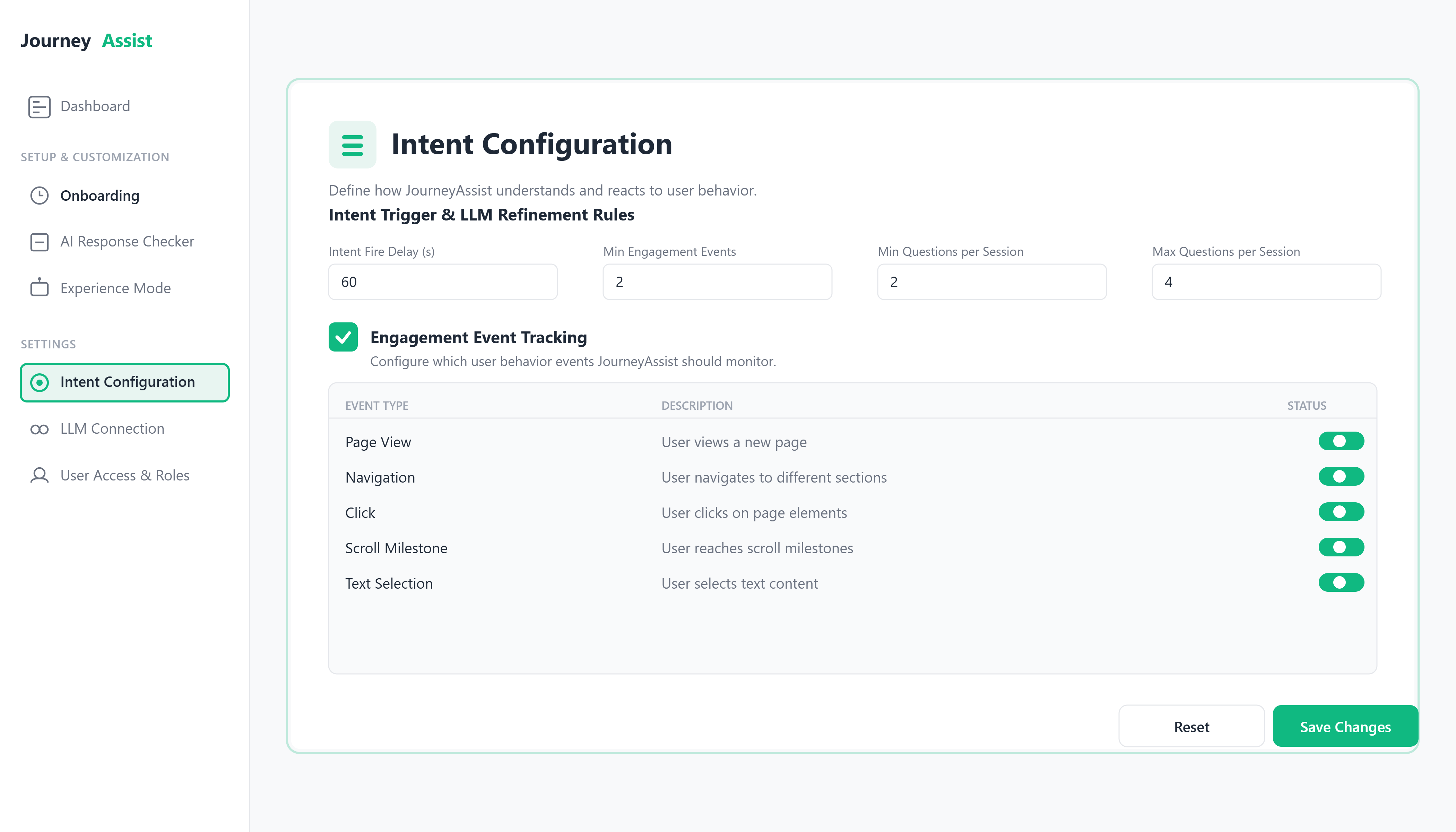
Path: JourneyAssist Realtime > Intent Engine
Use Cases Enabled
| Use Case | Description |
|---|---|
| Product Discovery Chatbot | Helps users explore services or product catalogs through guided queries and dynamic filters. |
| Support Q&A Assistant | Surfaces help content instantly using LLM/NLU-powered resolution across FAQs, documents, and support tickets. |
| Journey-Based Onboarding | Automates contextual user onboarding flows for first-time users, existing customers, or based on roles/goals. |
| Trigger-Based Campaigns | Launches real-time nudges, banners, or CTAs based on event-driven user behavior or specific page conditions. |
| Transactional Query Handling | Supports real-time response to user queries tied to transactions (e.g., order status, policy details, ticket ID). |
| Search Result Optimization | Enhances in-site search by re-ranking or auto-resolving queries using LLM-based semantic understanding. |
| Multi-Site LLM Management | Enables admins to configure, monitor, and route LLM responses differently across multiple web properties/domains. |
| Role-Based Experience Customization | Dynamically changes prompt flows, UI components, and allowed actions based on user role/type. |
| Smart Suggest & Auto-fill | Predicts and pre-fills responses, filters, or forms based on previous inputs and user history. |
| Intent Routing to APIs | Detects user intent and dynamically routes it to internal APIs, backend services, or external systems for execution. |
| Fallback to Human Agent | Provides controlled escalation paths to live support agents or ticketing systems when confidence is low. |
Remember: These use cases can be combined or customized further depending on your business goals and integration strategy.
Roadmap
Stay up to date with upcoming milestones and what’s already been delivered for MediaOptimizer.
Version 1.0.0 — Foundation Built
Sep 29, 2025
Initial launch of MediaOptimizer with the essentials for centralized pixel and campaign lifecycle management across ad platforms.
Version 1.1.0 — Control & Governance
Oct 09, 2025
Strengthened control, security, and accountability to operate at enterprise scale.
Date: September 29, 2025
Summary: Initial launch of MediaOptimizer with the essentials for centralized pixel and campaign lifecycle management across ad platforms.
Key Highlights
- MVP released: Core platform foundation for governance
- Ad platform connections: Meta, Google Ads, LinkedIn, TikTok
- Unified inventory: Single dashboard for campaigns & pixels with health indicators
- Expiry automation: 30/15/7-day expiry windows and outlook views
- Post-expiry monitoring: Track late conversions after pixel end date
- Early anomaly/inactivity flags: Detect unusual drops or inactivity (baseline)
- Reports & exports: Governance Health and Expiry Outlook (CSV/Excel/PDF)
Date: October 9, 2025
Summary: Strengthened control, security, and accountability to operate at enterprise scale.
Key Highlights
- Admin Console v1: Central hub for governance rules, alerts, and multi-account oversight
- RBAC: Role-based access for Admin / Marketer / Agency with brand/client scopes
- Platform-wide audit logging: Immutable activity history for approvals, rule edits, connections, and exports
- Alerting upgrades: Immediate vs. digest delivery, ownership, and escalation policies
- Reliability improvements: More resilient data refresh, clearer sync status, and cross-platform stability
Release notes
Admin Console v1 launched for unified pixel and campaign lifecycle control
Role-Based Access Control (RBAC) introduced for Admin, Marketer, and Agency roles
Automated alerting for pixel expiry, anomalies, and post-expiry conversions
Comprehensive audit logging for all governance and approval activities
Enhanced data refresh stability, cross-platform synchronization, and governance rule enforcement for enterprise-scale deployments
Core MediaOptimizer platform launched for automated pixel and campaign lifecycle management
Integration with Facebook, Google Ads, LinkedIn, and TikTok ad ecosystems
Automated pixel expiry tracking, anomaly flagging, and campaign-level health monitoring
Unified dashboard for centralized visibility across clients and ad accounts
Minimum Viable Product (MVP) providing end-to-end marketing governance foundation
Overview
This section describes how MediaOptimizer is structured to deliver reliable, automated control of campaign and pixel data across advertising platforms. It outlines the key functional components, data flow, reliability measures, and built-in safeguards — in simple business terms.
Purpose
To help marketing leaders, operations managers, and governance teams understand how MediaOptimizer:
- Consolidates campaign and pixel data from Meta, Google Ads, LinkedIn, and TikTok
- Automates pixel expiry tracking, anomaly alerts, and post-expiry conversion monitoring
- Ensures campaign accuracy and compliance with minimal manual effort
- Maintains security, auditability, and data transparency across teams and clients
High-Level Architecture
Core Components (Business View)
| Component | Description |
|---|---|
| Admin Console | The central workspace where teams connect ad accounts, review campaigns, configure expiry and alert rules, and manage approvals. |
| Ad Platform Connectors | The bridges that pull campaign and pixel information securely from your advertising platforms — keeping everything up to date automatically. |
| Campaign & Pixel Inventory | A unified dashboard showing every pixel and campaign across all accounts, complete with color-coded health indicators (Active, Expiring Soon, Expired). |
| Governance Engine | The decision layer that applies your organization’s policies — automating expiry alerts, anomaly detection, and compliance rules in the background. |
| Request Center | Workflow hub for agencies to submit pixel or campaign setup requests and for marketers/admins to approve, reject, or modify them. |
| Adobe Launch Deployment (Execution Layer) | When Adobe Launch integration is enabled, MediaOptimizer automatically deploys approved pixels as rules within Adobe Launch. For each approved pixel:
This removes manual tag deployment effort and ensures execution consistency across environments. |
| Lifecycle Automation | The automated monitoring system that checks each day for pixel expiries, inactive campaigns, or performance irregularities. |
| Alerts & Notifications | Central alert system that delivers actionable updates through the dashboard or email when issues require attention. |
| Reports & Exports | Generates governance summaries and performance reports for audits, client sharing, and internal tracking. |
| Audit Logging | Keeps a complete, non-editable record of key user actions — providing full traceability and compliance assurance. |
| Access Control (RBAC) | Manages user roles (Admin, Marketer, Agency) to maintain secure collaboration without exposing sensitive configurations. |
Backend Architecture
Think of the backend as the engine room that keeps everything synchronized, compliant, and available quietly powering the platform so users can focus on marketing decisions, not data management.
It works as follows:
- Continuous Sync: Regularly refreshes campaign and pixel data from connected ad platforms to maintain real-time accuracy.
- Smart Rules Processor: Applies expiry windows, anomaly checks, and governance logic automatically without human input.
- Health Updater: Flags status changes instantly — e.g., “Expiring Soon” or “Low Conversion Rate.”
- Secure Storage: Stores campaign and governance data safely with access controls and audit trails.
- Reporting Layer: Compiles and formats key metrics for dashboards and scheduled reports.
- Alert Dispatcher: Sends notifications to the right people at the right time based on rule priority.
Tip: Behind-the-scenes automation allows marketing teams to scale operations without adding more manual oversight or technical staff.
Data Flow Overview
- Connect Ad Accounts → Admin links each platform account.
- Sync Campaign & Pixel Data → MediaOptimizer pulls all active and historical records.
- Apply Governance Rules → Expiry windows, alert thresholds, and anomaly detection settings are activated.
- Monitor Lifecycle → System checks for expiry, inactivity, and unusual behavior daily.
- Alert & Resolve → Issues appear in the console and can be emailed for quick action.
- Audit & Report → Every action is logged; periodic reports summarize compliance and performance.
Deployment & Integration Model
- Multi-Platform Support: Connect multiple ad ecosystems from one workspace.
- Agency & Client Workspaces: Manage several clients or brands in a single environment.
- Automated Sync: Keeps campaign data up to date with minimal manual input.
- Scalable Access: Role-based access allows safe expansion across teams and partners.
Limit Admin privileges to key governance owners — misconfigured rules can impact multiple accounts at once.
Security & Compliance
- Role-Based Access Control: Separate permissions for Admin, Marketer, and Agency users.
- Single Sign-On (SSO): Supports enterprise authentication policies.
- Audit Trails: Immutable logs of key actions for full accountability.
- Data Minimization: Only essential campaign and governance data are retained.
- Compliance Readiness: Designed for enterprise governance and audit frameworks.
Scalability & Reliability
- Always On: Automated checks and syncs run continuously.
- Load Independent: Handles large volumes of campaigns and clients effortlessly.
- Self-Healing Sync: Automatically retries if any connection or update fails.
- No Developer Dependency: End-to-end management from the console.
Integration Patterns
- Automated Alerts: Triggered for expiry or anomaly conditions.
- Scheduled Reporting: Routine governance summaries delivered by email or dashboard.
- Custom Exports: Generate filtered data views for clients or audits.
Observability & Monitoring
| Capability | Description |
|---|---|
| Dashboard Health View | Visual summary of all pixels and campaigns with filter options. |
| Alert Center | Real-time alerts grouped by urgency and platform. |
| Activity Timeline | Tracks approvals, rule updates, and data refresh history. |
| Sync Status Indicator | Confirms when the last data update occurred and flags any missed runs. |
| Custom Reports | Build and export governance summaries by client, brand, or date range. |
Roles (RBAC)
| Role | Responsibilities |
|---|---|
| Admin | Connect accounts, define rules, manage users, approve requests, access all reports and audit logs. |
| Marketer | Oversee campaigns and pixels, respond to alerts, manage expiry settings within approved policy, approve agency requests. |
| Agency | Submit campaign/pixel requests, track status, and monitor assigned alerts — without access to governance rules or other clients. |
Overview
This guide explains how to configure MediaOptimizer for production use. It helps administrators and marketing ops teams to:
- Fine-tune monitoring and governance rules
- Manage roles and access (Admin, Marketer, Agency)
- Set alerting and report preferences
- Control workspace settings for multi-brand / multi-client environments
Configuration changes are logged in Audit Logs for traceability.
General Configuration Guidelines
- A Monitoring Toggle lets you pause or resume platform monitoring (useful during bulk updates).
- A Preview Mode allows configuration testing without triggering live alerts.
- Only Admin users can change global settings; Marketer may edit campaign/pixel settings within policy.
- All configuration updates are recorded in Audit Logs (who, what, when).
Core Configuration Areas
1) Ad Account Connections
What you set: Connections to Meta, Google Ads, LinkedIn, and TikTok.
How to use:
- Add account → authenticate → select business/ad accounts → save.
- Map accounts to brand/client labels for easier filtering.
Outcome: Campaigns and pixels sync into Pixel & Campaign Inventory with status.
Connect only the accounts you own or are contracted to manage; removing a connection pauses governance for that account.
2) Governance Rules
What you set: Organization-wide policies that power automation.
- Expiry Windows: e.g., alert at 30 / 15 / 7 days before pixel expiry.
- Anomaly Thresholds: Percent drop in conversions or activity that should raise an alert.
- Inactivity Rules: Flag pixels with no activity over a chosen duration.
- Post-Expiry Monitoring: Track conversions for a defined period after expiry.
3) Team Access Management (RBAC)
Roles and capabilities:
| Role | Capabilities |
|---|---|
| Admin | Manage connections, governance rules, alerts, users & permissions; approve/deny agency requests; full reports/logs. |
| Marketer | Manage campaigns/pixels within policy, respond to alerts, set expiry at campaign level, approve agency requests, export reports. |
| Agency | Submit pixel/campaign requests, view request status and scoped alerts; cannot change global rules or other clients. |
How to use:
Add user → assign role → set brand/client scope → invite.
Keep Admin access minimal; most day-to-day work fits the Marketer role.
4) Request Center (Agency Workflow)
What you set: Approval workflow for external partners.
- Submission Requirements: Mandatory fields (client/brand, platform, pixel ID/name, objective, start/end dates).
- Approvers: Who can approve (Admin/Marketer) and SLAs (e.g., 2 business days).
- Auto-Close: Auto-expire pending requests after a defined period.
Outcome: Approved requests move into inventory; declines keep an audit trail.
Scalable & Transparent
JourneyAssist's monitoring stack is designed to scale with your deployment. It offers:
- Real-time observability across all system components
- Rapid root cause identification with AI-assisted diagnostics
- Full transparency into system behavior, user journeys, and security posture
- Intelligent alerting that reduces noise while ensuring critical issues are never missed
- Predictive insights to prevent issues before they impact users
- Comprehensive audit capabilities for compliance and security requirements
Whether you're operating a single site or an enterprise-wide deployment, JourneyAssist keeps your operations resilient and well-informed through intelligent monitoring and proactive alerting.
5) Alerts & Notifications
What you set: When and how alerts are delivered.
- Alert Types: Expiring, Expired, Inactive, Anomaly, Post-Expiry Conversions.
- Channels: In-app and email (per user or team list).
- Cadence: Immediate, daily digest, or weekly digest.
- Severity: Mark critical items to always send immediate notifications.
Tip: Use daily digests for low-severity items to reduce noise.
6) Data Refresh & Sync Settings
What you set: Sync frequency and behavior.
- Refresh Frequency: Standard daily refresh; optionally add an extra mid-day refresh for high-velocity accounts.
- Failure Handling: Enable automatic retries; notify Admin on repeated failures.
- Scope Filters: Include/exclude specific accounts or campaigns from sync.
Outcome: Inventory and health indicators stay current without manual effort.
7) Reports & Exports
What you set: Report schedules and formats.
- Templates: Governance Health, Expiry Outlook, Anomaly Summary, Post-Expiry Conversions.
- Schedule: Weekly or monthly; on-demand anytime.
- Formats: CSV, Excel, PDF.
- Distribution: Email to selected users or client distribution list.
8) Feature Flags (Only what’s relevant)
Use toggles to enable/disable capabilities without redeployment.
| Feature Toggle | Description | Status Guidance |
|---|---|---|
| PostExpiryTracking | Track conversions for a defined period after pixel expiry. | ON for most teams. |
| AnomalyDetection | Flag unusual performance drops or activity spikes. | ON; tune thresholds in Governance Rules. |
| CrossAccountRollup | Roll up dashboards across clients/brands. | ON for agencies; OFF for single-brand teams. |
| DigestOnlyMode | Suppress immediate alerts; send daily digests. | Use during onboarding to reduce noise. |
9) Consent, Compliance & Audit
What you set: Organization standards for access and traceability.
- Access Governance: Enforce roles and scopes; require re-approval for scope changes.
- Audit Logging: Ensure all key actions (approvals, rule changes, connection updates) are recorded.
- Data Retention (Reports): Set retention period for generated exports if required by policy.
MediaOptimizer focuses on campaign and pixel metadata; it does not require personal data for governance.
Prerequisites
- Required Roles: Admin for global settings; Marketer for campaign-level updates.
- System Access: Admin Console access with brand/client scopes.
- Account Ownership: Valid access to the ad accounts you will connect.
- Change Window: Prefer a low-traffic window for initial activation.
Troubleshooting
- No data syncing: Re-authenticate the ad account; check account selection and scope.
- Too many alerts: Increase thresholds or switch non-critical alerts to digest mode.
- Missing campaigns/pixels: Confirm inclusion filters in Sync Settings and account mapping.
- Requests stuck: Ensure approvers are assigned and SLAs are visible; resend notifications if needed.
- Role cannot access module: Verify role and brand/client scope in Team Access.
Overview
Implementing MediaOptimizer centers on connecting your advertising accounts, setting governance rules, enabling alerting, and establishing an approval workflow with agencies. This guide walks you through a clean, low-risk rollout so marketers can manage pixel and campaign lifecycle without developer dependency.
Implementation Methods (Choose what fits your setup)
- Ad Platform Connections — Connect Meta, Google Ads, LinkedIn, TikTok to ingest campaigns/pixels.
- Governance & Alerts — Define expiry windows, anomaly thresholds, and who receives notifications.
- Request Center (Agency) — Enable propose/approve flows for external partners.
- Reports & Audit — Schedule governance and health summaries for stakeholders.
Tip: Start by connecting a limited set of ad accounts and turning on digest alerts. Expand to all accounts once thresholds feel right.
Step-by-Step Instructions
Step 1: Admin Portal Access
Action
- Log in to the MediaOptimizer Admin Console with your organization credentials.
- On the Dashboard, verify environment health: last sync time, expiring/expired pixel counts, open alerts.
- Confirm your role (Admin / Marketer / Agency) is correct under Team Access.
If you manage multiple brands/clients, confirm the correct workspace or folder is selected before continuing.
Step 2: Connect Ad Platform Accounts
Prerequisites
- You have Admin access in MediaOptimizer.
- You have the right permissions on the ad platforms you’ll connect.
Configuration Steps
- Go to Ad Account Connections.
- Select a platform (Meta, Google Ads, LinkedIn, TikTok) and authenticate.
- Choose the business/ad accounts to onboard; map each to a brand/client label.
- Save and run Initial Sync.
Validation Checkpoints
- Connection shows Connected.
- Pixel & Campaign Inventory populates with items for the selected accounts.
- No connection errors on the Dashboard.
Connect only the accounts you own or are contracted to manage. Removing a connection pauses governance for that account.
Step 3: Inventory Review & Mapping
Action
- Open Pixel & Campaign Inventory.
- Filter by platform and brand/client to confirm coverage.
- Resolve duplicates/inactive items flagged by the system.
- (If you manage agencies) Assign ownership to internal owners or agency teams.
Validation Checkpoints
- Health indicators visible (Healthy / Expiring Soon / Expired).
- Campaigns and pixels align with what you see in each ad platform.
Step 4: Configure Governance Rules
What to Set
- Expiry Alerts: e.g., notify at 30 / 15 / 7 days before pixel expiry.
- Anomaly Thresholds: e.g., unusual drop in conversions or inactivity windows.
- Inactivity Rules: Flag pixels with no activity beyond X days.
- Post-Expiry Monitoring: Track conversions for a window after expiry.
Path
- Governance Rules → define windows/thresholds → Save.
Tip: Start with broader windows and stricter thresholds. You can relax them after two weeks of real alert data.
Step 5: Set Alerts & Notifications
Configuration Steps
- Go to Alerts & Notifications.
- Choose alert types (Expiring, Expired, Inactive, Anomaly, Post-Expiry Conversions).
- Select delivery: immediate or daily/weekly digest.
- Add recipients (by role, team list, or specific users).
Validation Checkpoints
- Test emails received for a sample alert.
- Dashboard Alert Center shows the same items you’re emailed.
Step 6: Enable Request Center (Agency Workflow) — if you work with partners
Configuration Steps
- Open Request Center.
- Define submission requirements (client/brand, platform, pixel ID/name, objective, start/end dates).
- Set approvers (Admin/Marketer) and an SLA (e.g., 2 business days).
- Enable auto-close of stale requests if desired.
Validation Checkpoints
- Agency users can submit; Marketer/Admin can approve/decline.
- Approved items move into Inventory; decisions visible in Audit Logs.
Use the Agency role for external partners so they can propose changes without altering governance settings.
Step 7: Data Refresh & Sync Settings
Configuration Steps
- Go to Configuration → Data Refresh.
- Set daily refresh (default) and optional mid-day refresh for high-velocity accounts.
- Enable auto-retry on failure and Admin notification on repeated failures.
- Apply scope filters to include/exclude certain accounts or campaigns.
Validation Checkpoints
- Dashboard shows Last Sync time updates as expected.
- No persistent sync errors.
Step 8: Reports & Exports
Configuration Steps
- Open Reports & Exports.
- Choose templates: Governance Health, Expiry Outlook, Anomaly Summary, Post-Expiry Conversions.
- Schedule weekly or monthly sends; set recipients (internal/client).
- Select format (CSV / Excel / PDF).
Validation Checkpoints
- Reports are delivered on schedule with expected content.
- Filters (brand/client/platform) render correctly.
Step 9: Go-Live
Action
- Confirm Governance Rules and Alerts are on.
- Select initial accounts/brands to go live.
- Notify stakeholders of alert cadence and report schedules.
Keep Admin access limited to prevent accidental rule changes that can impact many accounts at once.
Post-Implementation Configuration
Experience & Views
- Dashboard Views: Summary, Lifecycle (timelines), Client/Brand rollups.
- Filters: Platform, brand/client, health status (Healthy / Expiring / Expired), owner.
Monitoring Cadence
- Daily: Review Alert Center and failed syncs.
- Weekly: Check Anomaly Summary, approve agency requests, and scan Audit Logs.
- Monthly: Distribute Governance Health and Expiry Outlook reports.
Team Access (RBAC)
- Admin: Accounts, rules, alerts, users, approvals, all reports/logs.
- Marketer: Campaign/pixel governance within policy; approve agency requests; exports.
- Agency: Submit requests; view status and scoped alerts only.
Go-Live Checklist
- Admin Console accessible; role assignments verified (Admin / Marketer / Agency).
- Ad accounts connected; Initial Sync completed without errors.
- Inventory reviewed; duplicates/inactive items handled.
- Governance Rules configured (expiry windows, anomaly thresholds, inactivity, post-expiry).
- Alerts & Notifications set (immediate vs. digest; recipients).
- Request Center enabled and tested (if you work with agencies).
- Data Refresh schedule active; retry + failure notifications enabled.
- Reports scheduled and delivered to stakeholders.
- Stakeholders briefed on alert cadence and responsibilities.
Operations & Support (after going live)
- Monitor: Check Alert Center and Last Sync daily.
- Improve: Tune thresholds monthly to reduce noise while catching real issues.
- Govern: Keep Request Center flowing; avoid backlog of pending approvals.
- Audit: Export monthly Audit Logs if required by compliance.
Manage Users and Roles
MediaOptimizer uses role-based access control (RBAC) so teams can collaborate safely across brands/clients and ad platforms. Admins can onboard users, assign roles, set scopes (brand/client), and review activity in Audit Logs.
All user, role, and permission changes are captured in Audit Logs (who, what, when) for compliance.
Role Creation Steps
- Go to: Admin Console → Team Access
- Click Add Role → enter Role Name and Description
- Select the permissions the role should have (see list below)
- (Optional) Limit the role to specific brands/clients
- Save, then assign the role to users
Assigning Roles
- Assign roles during user onboarding or anytime from Team Access
- Roles can also be mapped via SSO/IdP to streamline access
- A user may hold multiple roles (e.g., Marketer + Agency for different scopes)
Keep Admin access limited to trusted owners. Changes to governance rules or account connections affect many campaigns at once.
Built-in Roles (MediaOptimizer)
| Role | Permissions Summary |
|---|---|
| Admin | Full workspace control: connect ad accounts; set governance rules and alert policies; approve/deny agency requests; manage users and scopes; configure data refresh; access all reports and Audit Logs. |
| Marketer | Day-to-day governance: manage campaigns/pixels in Pixel & Campaign Inventory; adjust expiry at campaign level (within policy); act on alerts; approve/deny agency requests; export reports. |
| Agency | Propose changes: submit pixel/campaign requests with details (platform, pixel ID/name, dates, objective); view request status and scoped alerts; no access to governance rules, account connections, or other clients. |
Built-in Permissions (Business Terms)
| Permission | What it allows |
|---|---|
| Manage Ad Account Connections | Connect/disconnect Meta, Google Ads, LinkedIn, TikTok; select business/ad accounts; map to brands/clients. |
| Edit Governance Rules | Configure expiry windows, anomaly thresholds, inactivity rules, and post-expiry monitoring. |
| Approve Agency Requests | Review, approve, reject, or return change requests from agencies in Request Center. |
| Manage Alerts & Notifications | Choose alert types (Expiring/Expired/Anomaly/Inactivity/Post-Expiry), set recipients, set immediate vs. digest cadence. |
| Edit Pixel & Campaign Inventory | Resolve duplicates/inactive items; update ownership/labels; manage campaign-level expiry per policy. |
| Manage Data Refresh | Set refresh frequency, enable auto-retry, and receive failure notices; adjust include/exclude scopes. |
| View & Export Reports | Generate Governance Health, Expiry Outlook, Anomaly Summary, Post-Expiry Conversions; export CSV/Excel/PDF; schedule sends. |
| Manage Users & Scopes | Add/remove users; assign roles; restrict by brand/client; enforce least-privilege access. |
| View Audit Logs | Review time-stamped history of approvals, rule changes, connections, and role updates. |
| Configure Request Center | Define submission fields, approvers, SLAs, and auto-close behavior for stale requests. |
| Workspace & Branding Settings | Organize brands/clients; set report logos and naming; non-functional visual preferences. |
| Feature Toggles (Relevant) | Enable/disable PostExpiryTracking, AnomalyDetection, CrossAccountRollup, DigestOnlyMode as appropriate to your rollout plan. |
Tip: For large organizations or agencies, use brand/client scopes to ensure each user only sees and acts on what they’re responsible for.
MediaOptimizer is committed to protecting privacy and operating with transparency. This Policy explains how we collect, use, store, and protect information in the platform. It reflects our privacy-by-design approach and alignment with GDPR, SOC 2 Type II, NIST SP 800-30, and our security controls (TLS 1.2+ in transit, AES-256 at rest) with a strong focus on PII protection.
1. Scope of This Policy
This Policy applies to all use of MediaOptimizer services and features, including the Admin Console, alerting, reporting, and agency request workflows across supported advertising platforms (e.g., Meta, Google Ads, LinkedIn, TikTok).
2. Privacy-by-Design Commitments
We embed privacy into platform design and day-to-day operations.
Our core privacy goals:
- Use data only for stated, legitimate purposes tied to campaign and pixel governance.
- Provide administrators with controls to manage access and retention.
- Maintain clear visibility into what is collected and why.
- Support enterprise compliance programs aligned to GDPR, SOC 2 Type II, NIST SP 800-30 (risk management and governance).
We monitor regulatory updates and adjust consent models, retention settings, and subprocessors as required by our customers’ compliance needs.
3. Data Collection & Use
Collected Data Types (platform operations)
- Account & User Admin Data: name, business email, organization, role/permissions, brand/client scope.
- Ad Account Metadata: connected account identifiers, campaign/pixel identifiers, statuses, dates, high-level performance signals needed for governance (e.g., activity presence/absence).
- Operational & Session Data: login timestamps, action logs (approvals, rule updates), alert preferences, workspace selections.
- System Health & Usage: sync outcomes, error codes, job timing, delivery of alerts/reports.
How We Use the Data
- Service delivery: inventory sync, governance rules, alerts, approvals, reporting, audit logging.
- Troubleshooting & reliability: diagnose sync issues, improve refresh stability.
- Security & compliance: enforce RBAC, provide audit trails, support enterprise audits.
- Analytics (product operations): aggregate usage patterns to improve alert quality and reduce noise.
We do not sell personal data.
4. Consent Management
- Enterprise-administered controls: Organizations configure whether certain data elements may be processed and who can access them (via roles and brand/client scopes).
- User choices in the Admin Console: Users can adjust notification settings and email preferences.
- Website visitor tracking: MediaOptimizer focuses on campaign and pixel metadata governance, not end-user behavioral profiling; PII is not required for core governance features.
5. Data Retention & Erasure
- Configurable retention: Admins set retention for reports, exports, and alert histories according to enterprise policy.
- Audit Log retention: May be kept longer to meet compliance or contractual requirements.
- Data Subject Requests (DSRs): Upon a valid request received via approved channels, identifiable data within our control is erased within 7 business days, unless legal or contractual exceptions apply.
- Continuity: Retention and recovery follow enterprise DR/BCP requirements aligned with NIST SP 800-30 risk management practices.
6. Cross-Border Data Transfers
- Processing may involve transfers across regions using encrypted channels and audited subprocessors.
- Transfers are conducted with GDPR-compatible safeguards and consistent with SOC 2 Type II control objectives.
All data flows use TLS 1.2+ in transit and vetted subprocessors subject to contractual security and privacy obligations.
7. Automated Decision-Making
- The platform uses automation to flag expiring pixels, detect inactivity/anomalies, and send alerts.
- These automations do not create legal or similarly significant effects without human review.
- Administrators can review and override automated outcomes at any time.
8. Data Subject Rights (GDPR-Aligned)
We support the following rights where applicable and within our role as a processor/service provider:
- Access – Obtain a copy of personal data within our control.
- Deletion – Request erasure of identifiable data, subject to legal/contractual exceptions.
- Correction – Update inaccurate account or profile details.
- Portability – Receive data in a machine-readable format where feasible.
Submission Channels: Through the customer’s Admin Console contact path or enterprise privacy contact; supported by our service team.
Processing time: Target 7 business days for standard cases.
9. Audit Logging
Immutable audit logs capture key governance events for accountability:
| Event Type | Examples |
|---|---|
| Access & Session | Login, logout, password/SSO changes. |
| Admin Activity | Governance rule edits, role assignments, scope changes, account connections. |
| Approvals | Agency request approvals/declines, withdrawals. |
| Alerts & Actions | Alert creation, acknowledgment, resolution. |
Logs are signed, access-controlled, and exportable (e.g., CSV) based on enterprise policy.
10. Security Practices
- Encryption: TLS 1.2+ for data in transit; AES-256 for data at rest.
- Role-Based Access Control (RBAC): Admin, Marketer, Agency roles with least-privilege scopes.
- PII Protection: Platform functions rely on campaign/pixel metadata; PII is not required for core governance. Where any PII is handled (e.g., user admin details), it is protected and minimized.
- Monitoring & Anomaly Signals: Operational monitoring detects unusual activity; alerts prompt human review.
- Independent Controls: Processes and controls are designed for SOC 2 Type II; risk assessment and continuity align with NIST SP 800-30.
- Periodic Reviews: Policies and controls are reviewed and enhanced on a regular cadence.
11. Updates to This Policy
We review and update this Policy to reflect product changes, regulatory developments, and customer needs. Continued use of MediaOptimizer indicates acceptance of the latest version.
What’s New & What’s Next: The JourneyAssist Milestone Journey
JourneyAssist is on a mission to evolve digital experiences — from passive interfaces to intelligent, conversion-first journeys. Below is a transparent view of our phased milestones, tracking how the platform is expanding to meet enterprise needs.
MediaOptimizer applies enterprise-grade security and privacy controls to protect campaign/pixel metadata, administrator accounts, and operational records. Our approach follows privacy-by-design and aligns with GDPR, SOC 2 Type II, and the NIST SP 800-30 risk methodology, with encryption using TLS 1.2+ (in transit) and AES-256 (at rest). The platform is built for least-privilege access, transparent auditability, and protection of PII where applicable.
MediaOptimizer focuses on governance of campaign and pixel metadata. PII is not required for core features. Where user admin data (e.g., name, business email) is processed, it is minimized and protected.
1) Data Security & Privacy Controls
Encryption in Transit & at Rest
- All data in transit uses TLS 1.2+ with enforced HTTPS.
- All stored data uses AES-256 encryption.
Key Management
- Encryption keys are managed in a centralized, access-controlled KMS (provider-managed), restricted to system roles on a need-to-know basis.
Data Classification & Handling (business-friendly view)
- Public: Non-sensitive operational notices and aggregated trends.
- Internal: Sync outcomes, alert counters, job status, non-identifying logs.
- Confidential: Admin/user account details (name, business email), governance configurations, reports/exports.
- Restricted (PII): Only where customer workflows require it (e.g., user admin records). Access is role-restricted and fully audited.
Limit export permissions to trusted roles. Exports may contain governance history and identifiers linked to ad accounts.
2) PII Handling
- Minimization: Core governance functions (expiry, anomaly, monitoring) operate on campaign/pixel identifiers and dates, not end-user personal data.
- Protection: Where PII is present (e.g., admin user profiles), it is encrypted (TLS 1.2+ / AES-256), access-controlled, and visible only to authorized roles.
- No Selling of Personal Data: MediaOptimizer does not sell personal data.
3) Identity & Access Management
- RBAC: Built-in roles — Admin, Marketer, Agency — with least-privilege scopes (brand/client).
- SSO-Ready: Supports enterprise SSO/identity governance (customer-controlled).
- Scoped Access: Users can be restricted to specific brands/clients; approvals and rule changes are limited to authorized roles.
- Auditability: All critical access and permission changes are logged.
Tip: Keep Admin assignments limited. Most day-to-day work fits the Marketer role; external partners should use Agency with request/approval workflows.
4) Platform Security (Operational Safeguards)
- Configuration Governance: Changes to governance rules, alert thresholds, and account connections are recorded in Audit Logs.
- Change Traceability: Approvals/declines in Request Center (agency workflow) are fully traceable (who/what/when).
- Error Containment: Sync failures and repeated errors generate alerts to Admin recipients for timely remediation.
5) Monitoring, Logging & Incident Response
- Monitoring & Alerts: Continuous operational monitoring (sync health, expiry backlogs, anomaly spikes) with configurable notifications (immediate or digest).
- Audit Logging: Immutable logs for access/session events, rule changes, approvals, alerts, and exports; exportable per enterprise policy (e.g., CSV).
- Incident Handling: In the event of a security or privacy incident, Admins receive guided steps for containment and follow-up (review logs, validate connections, adjust scopes).
6) Data Retention & Erasure
- Configurable Retention: Admins define retention windows for reports/exports and alert histories based on policy.
- DSRs (GDPR-aligned): On valid request via your enterprise channel, identifiable data within our control is erased within 7 business days, except where legally required to retain.
- Continuity: Retention and recovery processes align with NIST SP 800-30 risk assessment methodology.
7) Cross-Border Data Transfers
- Encrypted & Controlled: Data transfers use TLS 1.2+ and vetted subprocessors subject to contractual security/privacy obligations.
- GDPR Safeguards: Cross-border handling is designed to meet GDPR transfer requirements and remain consistent with SOC 2 Type II control objectives.
8) Compliance Alignment
| Compliance Objective | MediaOptimizer Support |
|---|---|
| GDPR | Data access/deletion on request; configurable retention; auditability; role-based access; no sale of personal data. |
| SOC 2 Type II | Security controls designed and operated to meet Trust Services Criteria (security, availability, confidentiality) as applicable to the service. |
| NIST SP 800-30 | Risk assessment and continuity practices aligned to the NIST SP 800-30 methodology (risk identification, evaluation, and mitigation). |
MediaOptimizer includes built-in monitoring and alerting so administrators can:
- Maintain data refresh reliability across ad platforms
- Keep campaign/pixel health accurate (active, expiring, expired)
- Detect underperformance or anomalies early
- Track approvals and operational activity with full auditability
Monitoring is accessible in Admin Console → Monitoring and related modules (Dashboard, Alert Center, Reports, Audit Logs).
Monitoring Tools
| Tool Name | Metrics Tracked |
|---|---|
| System Dashboard | Last sync time per platform/account, sync success/failure trends, open alerts by severity, expiring/expired pixel counts |
| Inventory Health | Pixel & campaign status (Healthy / Expiring Soon / Expired), inactive pixels, post-expiry conversions, platform/brand filters |
| Sync Monitor | Connection status (Meta/Google/LinkedIn/TikTok), retry counts, failure reasons, scope inclusions/exclusions |
| Alert Center | Active alerts (Expiring, Expired, Inactive, Anomaly), acknowledgements, resolutions, SLA timers |
| Request Center Monitor | Open approvals from agencies, pending time, SLA breach risk, decline/withdrawal trends |
| Reports Delivery | Scheduled report success/failure, last delivery time, recipients, export volumes |
| Audit View | Admin/Marketer/Agency actions: role changes, rule edits, approvals, exports, connection updates |
Use filters (brand/client, platform, owner) on Dashboard and Inventory Health to focus on high-priority accounts first.
Alert Setup
Threshold-Based Alerts
- Pixel expiry windows: Upcoming expiries at 30 / 15 / 7 days
- Anomaly detection: Conversion/activity drop beyond configured % (Governance Rules)
- Inactivity: No tracked activity for X days (configurable)
- Sync failures: N consecutive failures or no refresh by scheduled time
- Export spikes: Sudden increase in report/export volume (potential data exfiltration risk)
Event-Based Alerts
- Connection changes: New ad account connected/disconnected; token revoked
- Rule updates: Governance thresholds, alert policies, or scope changes saved
- Approvals: Agency request approved/declined/withdrawn; pending SLA at risk
- Report delivery: Scheduled report failed to deliver
- Role & access: New Admin assignment; scope elevation; mass user invites
Treat Admin role changes and connection removals as Critical—these can impact tracking at scale.
Alert Severity (recommended)
- Critical: Connection removal, token revoke, expired pixels on active campaigns
- High: Expiring soon with <7 days; repeated sync failure; large anomaly deviation
- Medium: Inactivity warnings; pending approvals nearing SLA
- Info: Scheduled report delivered; governance rule updated
Notification Rules
- Recipients & Routing: Target by role (Admin / Marketer / Agency) and by brand/client scope
- Delivery Channels: Email and in-app notifications
- Cadence: Immediate for Critical/High; daily or weekly digest for Medium/Info
- Actions: Acknowledge, snooze (time-boxed), reassign owner, mark resolved
- Escalation: Auto-escalate Critical alerts not acknowledged within a defined window (e.g., 2 hours) to Admin recipients
Tip: Start with digests for Medium/Info alerts to avoid noise; keep Critical/High as immediate.
Dashboard Integration
Unified Monitoring Dashboard provides:
- Real-time Health: Open alerts, last sync by platform, expiry outlook
- Alert Status Overview: Active vs. resolved, SLA breaches, ownership
- Performance Trending: Expiring/expired counts over time; anomaly trendlines
- Approvals Workload: Pending agency requests, age, SLA timers
- Export Activity: Recent report deliveries and volumes
Compliance Monitoring
- Audit Trail Visualization: Timeline of approvals, rule edits, role changes, connections, and exports
- Compliance Reports: Export governance/audit summaries for internal reviews
- Data Retention Monitoring: Track retention windows for reports/exports and purge events per policy
Scalable & Transparent
- Real-time observability of inventory and sync health across multiple brands/clients
- Proactive alerting that balances immediacy with digest mode to reduce noise
- Clear accountability via Audit Logs, owners, SLAs, and escalation paths
Recommended Baselines (Quick Start)
- Expiry alerts: 30 / 15 / 7 days (Critical at 7 days)
- Anomaly threshold: Start conservative (e.g., −40% activity) and tune after two weeks
- Sync monitor: Immediate alert on 2 consecutive failures; digest for single failures
- Approvals: SLA of 2 business days; escalate if pending >36 hours
- Exports: Daily digest of deliveries; immediate alert on failures
MediaOptimizer applies enterprise-grade data governance so campaign and pixel information is collected, stored, and used with integrity, traceability, and accountability. Governance spans the full lifecycle — connection → sync → monitoring → alerting → reporting/export — with clear controls for classification, access, auditing, and sharing, aligned to GDPR, SOC 2 Type II, and the NIST SP 800-30 risk methodology. Encryption uses TLS 1.2+ (in transit) and AES-256 (at rest). PII is minimized and protected.
MediaOptimizer primarily manages campaign and pixel metadata. PII is not required for core features; where admin user details (e.g., name, business email) are processed, they are minimized and protected.
Data Classification Guidelines
Classification Tiers
| Tier | Description |
|---|---|
| Public | Non-sensitive operational summaries (e.g., anonymized governance trends). |
| Internal | Sync status, alert counters, job timing, non-identifying operational metadata. |
| Confidential | Workspace settings, governance rules, report schedules/recipients, admin/marketer account details (name, business email). |
| Restricted (PII) | Only where customer workflows require it (e.g., specific user-admin records); always encrypted, access-restricted, and fully audited. |
Labeling Mechanism
Each record/field relevant to governance (e.g., inventory items, alerts, reports, role updates) is tagged with a classification label that determines:
- Encryption & masking expectations
- Visibility in dashboards and reports
- Export & sharing restrictions (role/scope checks; approval where required)
Data Handling by Classification
- PII & Restricted: Encrypted with AES-256 at rest and TLS 1.2+ in transit; RBAC and brand/client scopes enforced; excluded from general exports.
- Confidential: Visible to authorized roles (Admin/Marketer) only; masked/redacted in broad exports.
- Internal: Visible to authorized operators for reliability and issue resolution; not exposed in client-facing reports.
Limit export permissions to trusted roles. Exports can include governance histories and identifiers linked to ad accounts.
Access Auditing & Logging
Logged Activities
- Access & Session: Logins, logouts, password/SSO outcomes.
- Configuration: Governance rule edits, alert policy changes, brand/client scope updates, connection changes.
- Approvals & Requests: Agency submissions, approvals/declines/withdrawals, SLA timing.
- Data Operations: Report generation, export downloads, sync failures/retries.
Each log entry includes timestamp, actor role, action, object/context, and source workspace/brand where applicable.
Audit Reports & Alerts
- Filterable reports by role, brand/client, platform, classification level.
- Suspicious behavior alerts (e.g., mass exports, sudden scope elevation, repeated connection failures).
- Compliance support for GDPR and SOC 2 Type II via immutable audit history.
Third-Party & API Access Controls
- Scoped connectors to advertising platforms (Meta, Google Ads, LinkedIn, TikTok) with least-privilege access.
- Credential hygiene: token lifecycle checks, revocation handling, failure alerting.
- Periodic reviews: connection and scope verification to ensure continued necessity and correctness.
Data Sharing Controls
Export Restrictions
- Exports respect classification labels and user role/scope.
- Optional approval workflow for sensitive exports; Admin can require second review.
- Export logs captured in Audit Logs (who/what/when).
Partner Data Filters
- When sharing with external systems or stakeholders, only pre-approved fields are included; Restricted/PII fields are excluded or masked.
Anonymization Options
- Analytics-style exports can be tokenized/anonymized to remove direct identifiers while preserving trends (e.g., expiry counts, anomaly rates).
Governance at Scale
- Scales across multiple brands/clients with role- and scope-based access.
- Meets compliance expectations (GDPR; SOC 2 Type II controls; NIST SP 800-30 risk assessment alignment).
- Transparent operations with complete auditability, configurable retention, and export controls.
- Clear accountability via approvals, owners, SLAs, and escalation paths.
This guide helps admins, marketers, and agency users quickly diagnose and resolve common issues while deploying and operating MediaOptimizer. It focuses on campaign/pixel lifecycle, ad-platform connections, governance rules, alerts, approvals, reporting, and auditability.
Use Dashboard → Alert Center and Audit Logs as your first stop. They usually reveal the failing connection, rule change, or pending approval behind most issues.
Common Issues & Resolutions
Possible Causes
- Ad platform account not connected or token expired
- Wrong business/ad account selected during connection
- Sync filters exclude the targeted accounts/brands
Resolution Steps
- Ad Account Connections: Re-authenticate; confirm the correct business/ad accounts are selected.
- Configuration → Data Refresh: Run Initial Sync; check for retry/failure messages.
- Scope/Filters: Ensure the brand/client scopes include the intended accounts.
Possible Causes
- Platform rate limits or revoked permissions
- Temporary platform outage
- Excluded scopes or paused refresh schedule
Resolution Steps
- Sync Monitor: Review failure codes and retry counts; re-run sync.
- Reconnect the affected platform (e.g., Meta/Google/LinkedIn/TikTok).
- Verify Data Refresh schedule and inclusion filters.
- If repeated failures: Increase retry window and notify Admin recipients.
Removing a connection pauses governance for that account. Re-add promptly to avoid tracking gaps.
Possible Causes
- Expiry windows not configured (e.g., 30/15/7 days)
- Pixel end dates missing/incorrect in platform metadata
- Alerts routed only to digest and not immediate recipients
Resolution Steps
- Governance Rules: Confirm 30/15/7-day thresholds are set.
- Validate pixel dates in the ad platform; resync.
- Alerts & Notifications: Ensure Critical/High alerts are set to Immediate with the right recipients.
Possible Causes
- Thresholds too sensitive for your account mix
- Sudden planned changes (campaign pauses, budget shifts)
Resolution Steps
- Relax Anomaly Thresholds (e.g., start at −40% and tune after 2 weeks).
- Move low-severity alerts to daily digest.
- Use filters (brand/platform) to isolate known change windows.
Possible Causes
- Post-Expiry Monitoring enabled (designed behavior)
- Platform-side delayed attribution
Resolution Steps
- Confirm Post-Expiry Monitoring window in Governance Rules.
- If not desired, adjust or disable the window.
- Note that delayed conversions may still be attributed by the ad platform.
Possible Causes
- Legacy pixels not decommissioned in platforms
- Multiple agencies/teams created overlapping entries
Resolution Steps
- Use Inventory Health to filter Inactive/Duplicates and assign an owner.
- Archive/deprecate duplicates in the ad platform; resync.
- Enforce Request Center approvals for new pixels.
Possible Causes
- No approver assigned for the brand/client
- SLA not defined; approvers unaware
Resolution Steps
- Request Center: Set approvers (Admin/Marketer) and SLA (e.g., 2 business days).
- Ensure approvers receive Immediate alerts for SLA risk.
- Reassign owner if on leave; add backup approver.
Possible Causes
- Recipient list empty or invalid
- Export size too large; delivery throttled
- Scheduler paused during maintenance
Resolution Steps
- Reports & Exports: Verify recipients, schedule, and format (CSV/Excel/PDF).
- Check Reports Delivery monitor for failures; retry/send now.
- Split a heavy report by brand/platform; confirm delivery.
Possible Causes
- Incorrect role or missing brand/client scope
- Recently changed role not reloaded in session
Resolution Steps
- Team Access: Confirm role (Admin/Marketer/Agency) and scopes.
- Re-login after role updates.
- For Agencies, confirm the client/brand assignment is correct.
Possible Causes
- Token revoked in the ad platform
- Manual disconnection by another Admin
Resolution Steps
- Audit Logs: Identify who/what/when.
- Reconnect the platform and reselect accounts.
- Restrict Admin role to trusted owners only.
Possible Causes
- Exporter has broader role/scope than intended
- Export template includes fields beyond policy
Resolution Steps
- Data Governance / Exports: Require approval for sensitive exports.
- Restrict exports to Marketer/Admin only; adjust templates to exclude restricted fields.
- Review Audit Logs for export history.
Possible Causes
- Escalation window too short/long
- Recipients misconfigured or outside brand scope
Resolution Steps
- Alerts & Notifications: Verify escalation timer (e.g., 2 hours) and escalation recipients.
- Ensure recipients have access to the impacted brand/client.
- Test with a dummy alert to verify routing.
Access Media Optimiser product guides, governance workflows, and security overviews to keep your tags, data, and media transparent, accurate, and high-performing.
All Resources (0 resources)

Why Media Optimiser Features
A product overview of how Media Optimiser unifies tag management, AI-driven validation, governance standards, and optimisation across web, app, and analytics ecosystems so every media pixel is trusted and consistent.
Media Optimiser Governance & Admin Guide
Explains how admins and media teams configure workspaces, connect ad and analytics platforms, set governance rules, manage roles, and use lifecycle automation to keep all tags compliant and under control without developer dependency
This glossary explains key MediaOptimizer terms you’ll see in the support portal. Each entry is written in business-friendly language and maps to actual features or actions in the product.
A
Access (Role-Based)
What a user is allowed to do in the platform based on their role (Admin, Marketer, Agency) and brand/client scope.
Ad Account Connections
Secure links to advertising platforms (e.g., Meta, Google Ads, LinkedIn, TikTok) so MediaOptimizer can sync campaigns and pixels.
Admin Console
The web workspace where you connect accounts, set governance rules, review alerts, manage requests, and run reports.
Agency (Role)
External partner role that submits requests for new pixels/campaign changes but cannot change organization-level rules.
Alert Center
A single place to view and act on Expiring, Expired, Inactive, and Anomaly alerts.
Anomaly Detection
Automatic flag for unusual drops or spikes in activity or conversions compared to your configured thresholds.
Audit Logs
An uneditable record of significant actions (e.g., approvals, rule edits, role changes, exports, connection updates) showing who did what and when.
B
Brand/Client Scope
Access boundaries that limit what a user can see and manage to specific brands or client accounts.
C
Campaign & Pixel Inventory
Unified catalog of all campaigns and pixels pulled from connected ad accounts, with filters and health indicators.
Critical / High / Medium / Info (Severity)
Priority levels used to label alerts and route notifications with the appropriate urgency.
D
Data Refresh (Sync Frequency)
Scheduled updates that keep your inventory and statuses current. Includes auto-retry on failure and last-sync indicators.
Digest (Alert Digest)
A batched email of lower-severity alerts (daily/weekly) to reduce notification noise.
Duplicate (Pixel/Campaign)
Two or more entries that represent the same tracking setup; typically resolved by archiving one at the source and resyncing.
E
Escalation (Alert)
Automatic routing of a Critical alert to additional recipients if it isn’t acknowledged within a set time window.
Export (Reports/Inventory)
Download of governance data (CSV/Excel/PDF). Exports are role- and scope-controlled and recorded in Audit Logs.
Expiry Outlook
Forward-looking view of pixels approaching end date based on your configured 30 / 15 / 7-day windows.
Expiry Window (Thresholds)
The number of days before a pixel’s end date when alerts should be raised (e.g., 30/15/7).
Expired (Status)
A pixel whose end date has passed; MediaOptimizer continues optional post-expiry monitoring to capture late conversions.
G
Governance Rules
Your organization’s policy settings for expiry, anomaly thresholds, inactivity, and post-expiry monitoring that drive automated alerts.
H
Health Status (Inventory)
Color-coded indicators for pixel/campaign condition: Healthy, Expiring Soon, Expired, Inactive.
I
Inactive (Status)
A pixel showing no activity for a configured period; raises an Inactivity alert for review.
Initial Sync
First data pull after connecting an ad account to populate the Campaign & Pixel Inventory.
M
Marketer (Role)
Core operational role that manages campaigns/pixels, responds to alerts, and approves agency requests within policy.
O
Owner (Alert/Inventory)
The person or team responsible for resolving an alert or maintaining a specific campaign/pixel.
Pixel (Conversion Tag)
A tracking mechanism used by ad platforms to measure actions (e.g., purchases, form fills) tied to campaigns.
Post-Expiry Monitoring
Optional tracking window after a pixel’s end date to surface late conversions for accurate attribution.
R
RBAC (Role-Based Access Control)
Access model using predefined roles (Admin, Marketer, Agency) plus brand/client scopes to enforce least-privilege.
Reports & Exports
Scheduled or on-demand summaries (e.g., Governance Health, Expiry Outlook, Anomaly Summary, Post-Expiry Conversions) for stakeholders.
Request Center
Workflow where Agencies submit pixel/campaign changes and Marketers/Admins approve or decline with an audit trail.
Retry (Sync)
Automatic attempt to re-run a failed data refresh before notifying Admin recipients.
S
Scope (Access Scope)
Which brands/clients a user can view and manage; applied to modules, alerts, and reports.
SLA (Approvals/Alerts)
Target time to approve requests or acknowledge critical alerts (e.g., 2 business days for approvals, 2 hours for critical alerts).
Sync Monitor
Live view of connection status, retries, error reasons, and inclusion/exclusion filters across platforms.
T
Threshold (Alert Threshold)
The configured level that triggers an alert—e.g., anomaly percentage, inactivity days, expiry windows.
Token (Platform Access)
Authorization credential from an ad platform that allows MediaOptimizer to sync data; must be valid and in scope.
U
Unified Dashboard
Single-pane view of health metrics: last sync per platform, open alerts by severity, expiry outlook, approvals workload, export activity.
V
Viewer Access (Reports)
Ability to view dashboards and download permitted reports without changing rules or connections; typically part of the Marketer role or scoped read-only access.
Tip: If you’re unsure why an alert arrived, open the Alert Center item and check Owner, Severity, Last Sync, and Audit Logs—you’ll usually see the exact change or delay that triggered it.
This section outlines the minimum hardware, software, and infrastructure prerequisites required to deploy and operate MediaOptimizer. MediaOptimizer is a configured enterprise platform and does not require customers to build or develop components.
End-User Requirements
- Modern web browser (Chrome, Edge, Firefox – latest versions)
- Minimum screen resolution: 1366×768
- Stable internet connectivity
- JavaScript and cookies enabled
Server & Infrastructure Requirements (Hosted / On-Prem)
Compute
- Minimum: 4 vCPUs
- Recommended: 8 vCPUs for enterprise workloads
Memory (RAM)
- Minimum: 8 GB
- Recommended: 16–32 GB for large-scale deployments
Storage
- Minimum: 100 GB SSD storage
- Recommended: Scalable storage for logs, reports, and audit data
Network
- Secure outbound access to advertising platform APIs
- HTTPS (TLS 1.2+) enabled
- Firewall rules allowing API connectivity to Meta, Google Ads, LinkedIn, TikTok, Adobe Launch
Platform & Software Dependencies
- Linux-based server environment (Ubuntu recommended)
- Docker support (for containerized deployment, if applicable)
- PostgreSQL database (managed or self-hosted)
- SMTP service for email notifications
- Enterprise Identity Provider for SSO (optional but recommended)
Security & Access Prerequisites
- Role-based access control enabled
- Secure credential storage for third-party integrations
- Encrypted data at rest and in transit
- Regular backup and disaster recovery policies